Google Drive Integration
Connect Google Drive to bring files into chat, export linked Google Docs you can keep updating, and have ChatPRD review a Google Doc in place.
Connect Google Drive to bring Docs and files into ChatPRD, export documents as native Google Docs that stay linked, and get ChatPRD's feedback published straight into a Google Doc.
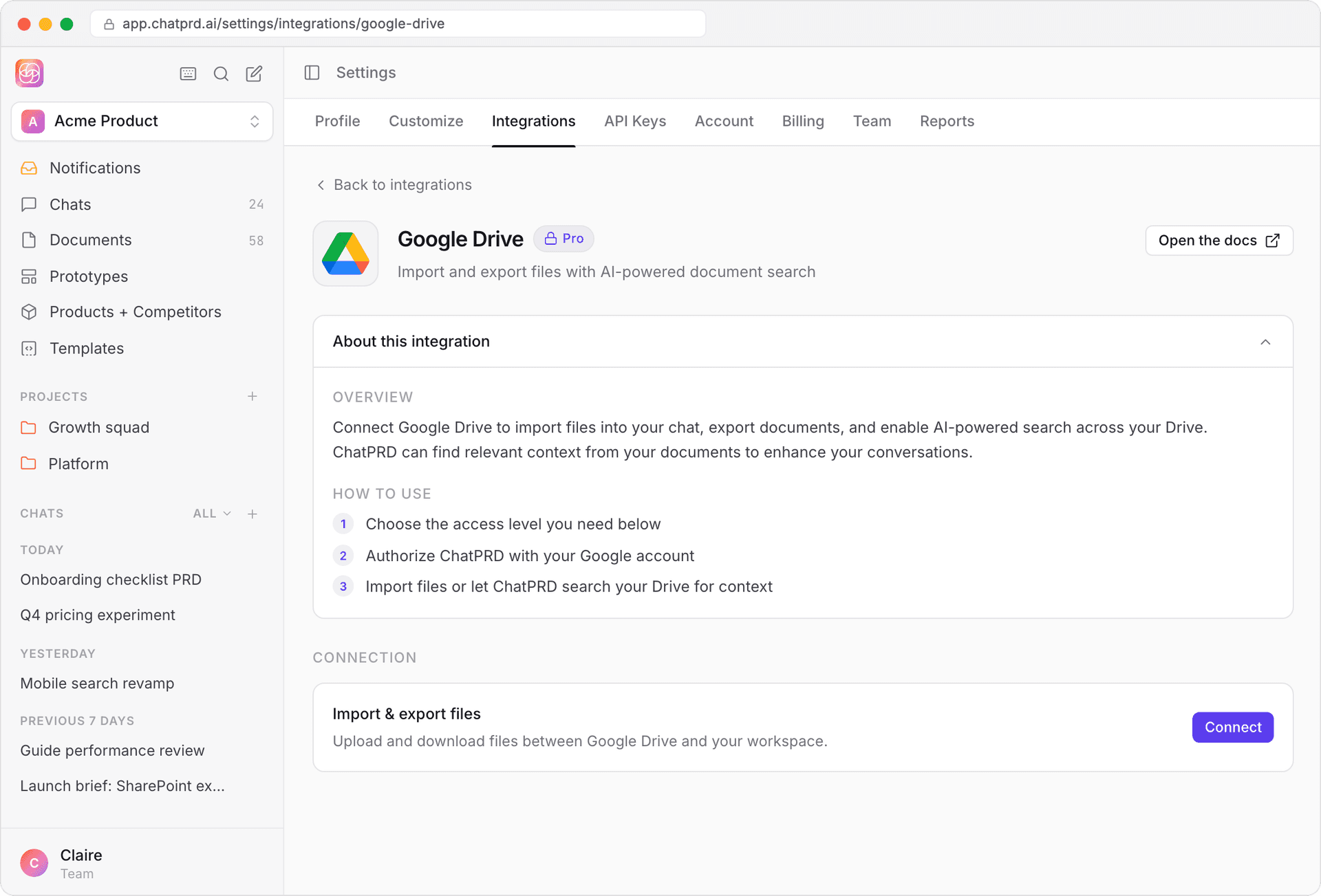
Set up Google Drive
- Go to Settings > Integrations.
- Under Document Import / Export, open Google Drive.
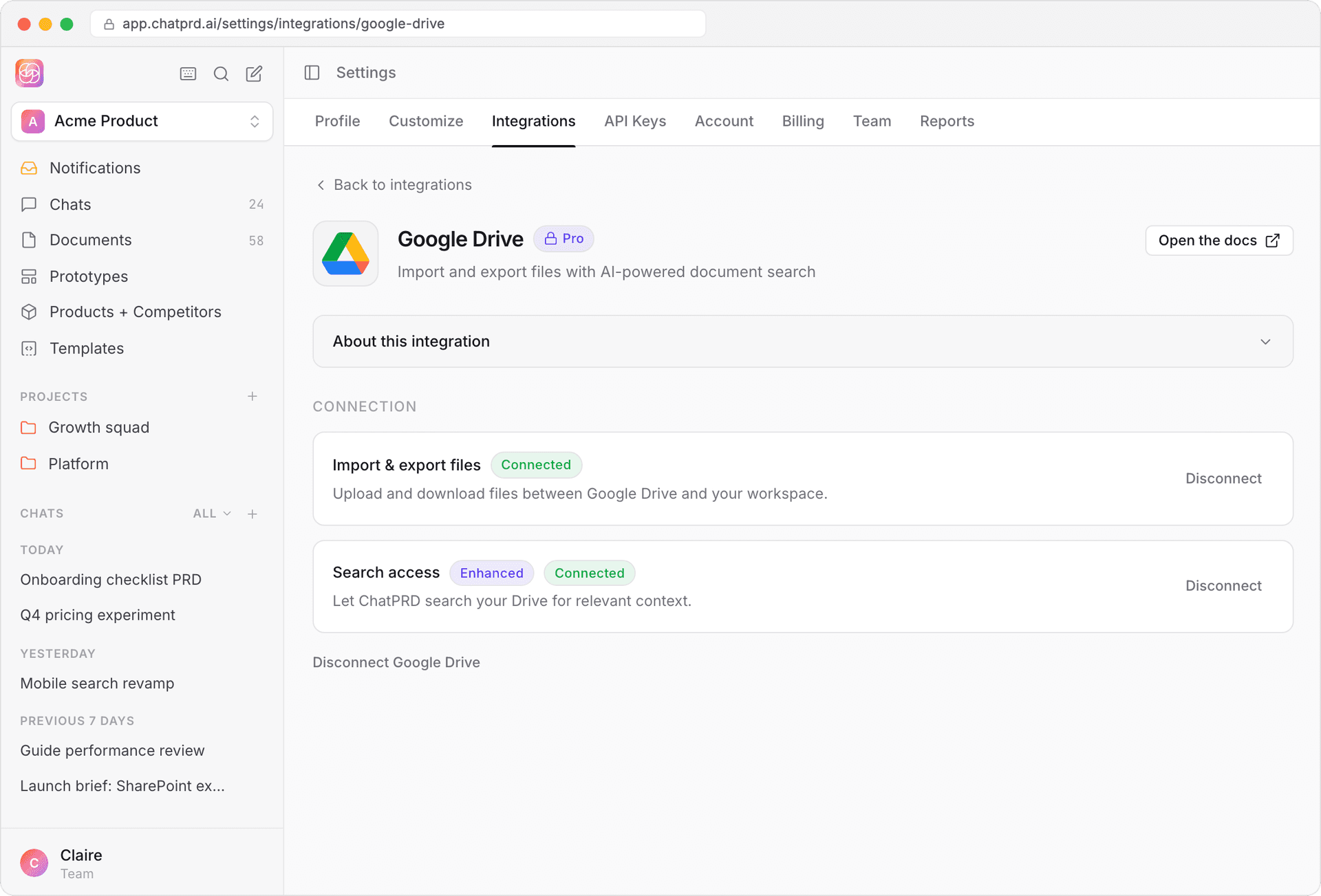
- Choose the access you need, and click Connect on that card:
- Import & export files: bring files into chat and export Google Docs.
- Search access: also lets ChatPRD search your Drive from Chat tools.
- Sign in with your Google account and grant the permissions ChatPRD asks for.
- Back in ChatPRD, the card shows Connected, and the Google Drive tile in Settings > Integrations gets a green dot.
Bring files in from Drive
Click the paperclip in the chat composer and choose Add from Google Drive, then pick a Google Doc, PDF, DOCX or Markdown file. Google Docs come in as Markdown, so headings and structure are kept. You can also add Drive files to a project, or bring one into Improving documents.
To let ChatPRD search your Drive for context while you chat, turn on Google Drive in the Chat tools menu. This needs Search access. See Tool Selector.
Export to Google Docs
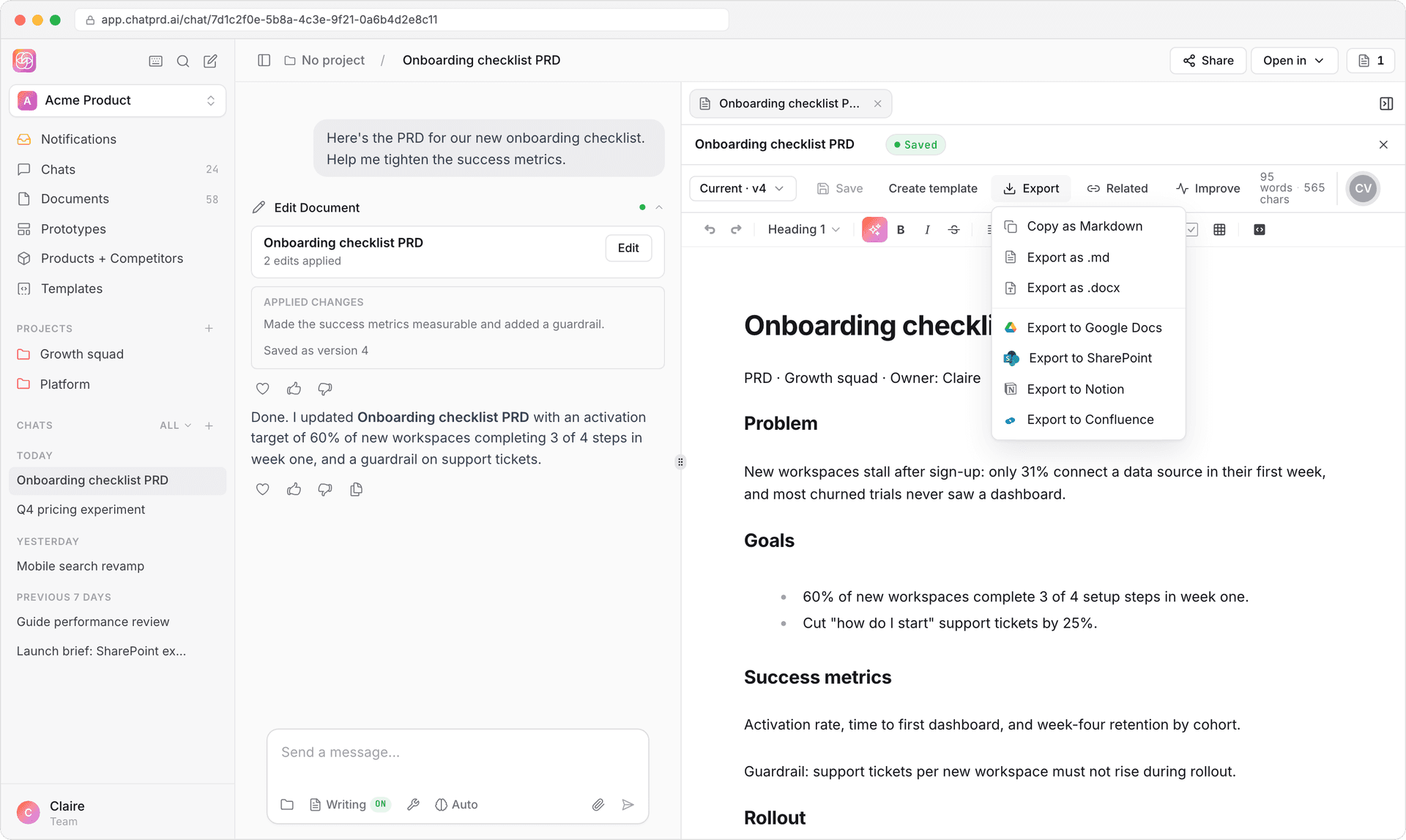
- In the document editor, click Export.
- Choose Export to Google Docs.
- When the toast says Exported to Google Docs, click Open Google Doc.
ChatPRD creates a native Google Doc, not an uploaded file, so headings, lists, tables, links and formatting come through as Google Docs formatting.
Update the linked Google Doc
The export stays linked to its Google Doc. After you edit in ChatPRD:
- Open Export and click Update Google Doc. The menu shows when you last published.
- Review the preview of what changed since then: added text is underlined in green, removed text is struck through in red.
- Click Publish to Google Doc. The Doc keeps the same link and sharing.
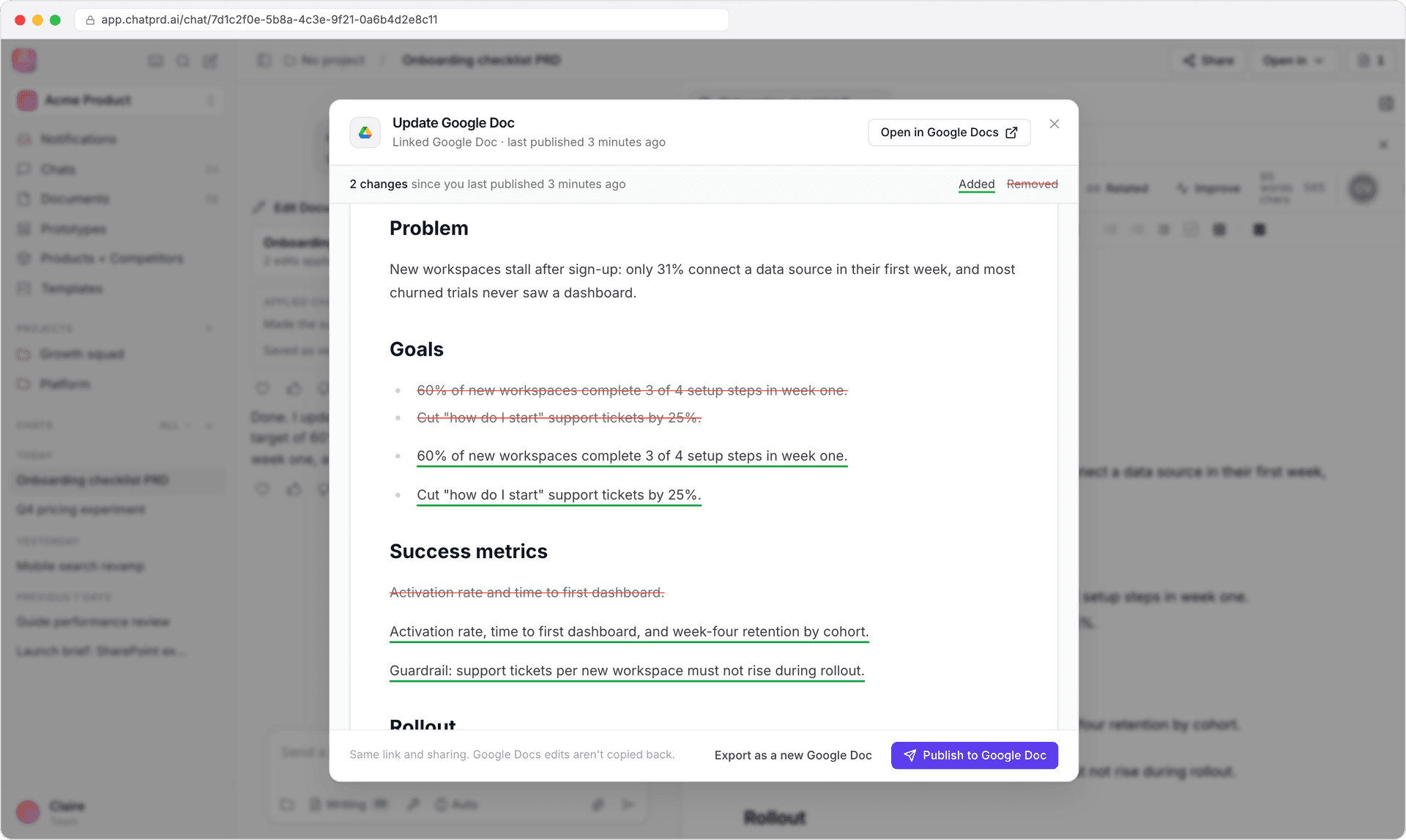
To make a separate copy instead, click Export as a new Google Doc.
An update never overwrites work done in Google Docs. ChatPRD won't publish if the Doc was edited in Google Docs since you last published, has comments or suggestions, has more than one tab, or has content that can't be updated in place. In those cases, export a new Google Doc. Edits made in Google Docs aren't copied back into ChatPRD. See Exporting documents for details.
Review a Google Doc
On the Improve a document page, choose Review in Google Docs and pick a Doc you can edit. ChatPRD scores it, anchors each suggestion to the exact passage, and publishes suggestions into the Doc as comments and suggested edits, one at a time or all at once.
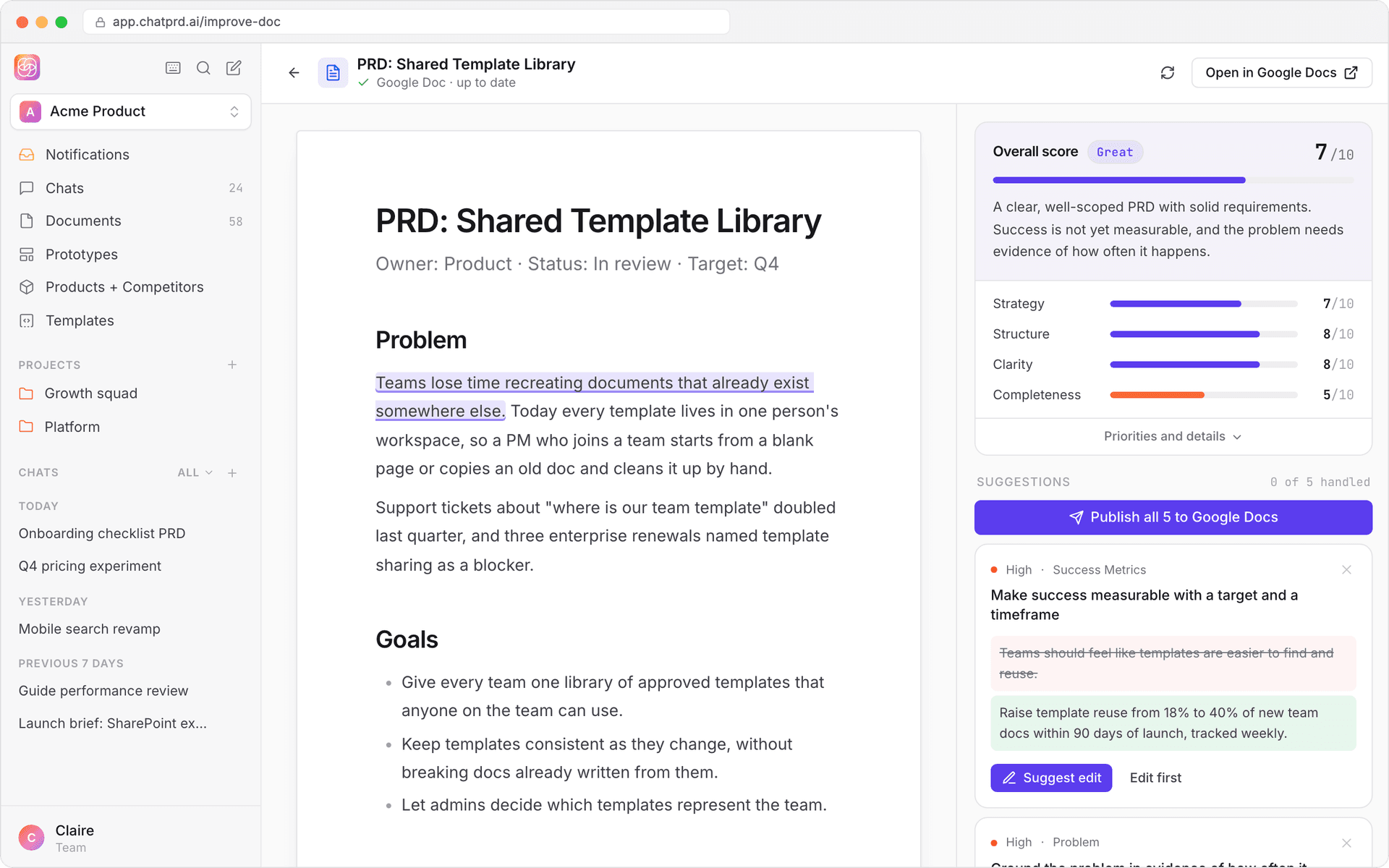
See Review a Google Doc.
Troubleshooting
- Connection issues
- Check that Google Drive shows as connected in Settings > Integrations.
- If you see Reconnect Google Drive, click it and sign in again.
- Make sure you granted all the permissions ChatPRD asked for.
- Can't update a Google Doc
- Can't reach your Google Doc means it was deleted, moved, or you no longer have edit access.
- If the Doc was exported with a different Google account, reconnect with that account, or export a new Google Doc.
- For the other reasons an update is blocked, see Safe updates.
- Export failures
- Check you have space in your Google Drive.
- Try again, or export a new Google Doc.
- Formatting
- Some complex formatting, like images and task lists, can't be updated in place. Export a new Google Doc instead.
If problems persist, contact ChatPRD support.