Linear Integration
Add the ChatPRD agent to Linear to improve issues, write sub-issues, answer questions, and update status, assignee, priority and labels for you.
The ChatPRD agent works inside Linear. It drafts and improves requirements, breaks issues into sub-issues, answers questions, and can now update issues and create new ones when you ask.
Looking to search Linear from a ChatPRD chat instead? Turn on Linear in the Tool Selector. This page covers the agent that works inside Linear.
What the Linear agent can do
- Review and improve issue descriptions
- Break large issues into sub-issues
- Answer requirements questions when you mention it in a comment
- Update an issue's status, assignee, priority and labels
- Create new issues
- Search issues and projects, and list teams and workflow states
Requirements
- A Team or Enterprise plan. The Linear agent is available for teams only.
- Permission to connect integrations in ChatPRD and in Linear.
Connect Linear
- In ChatPRD, go to Settings > Integrations.
- Under Productivity, open Linear (marked Teams) and click Connect.
- Sign in to Linear and approve the permissions ChatPRD asks for.
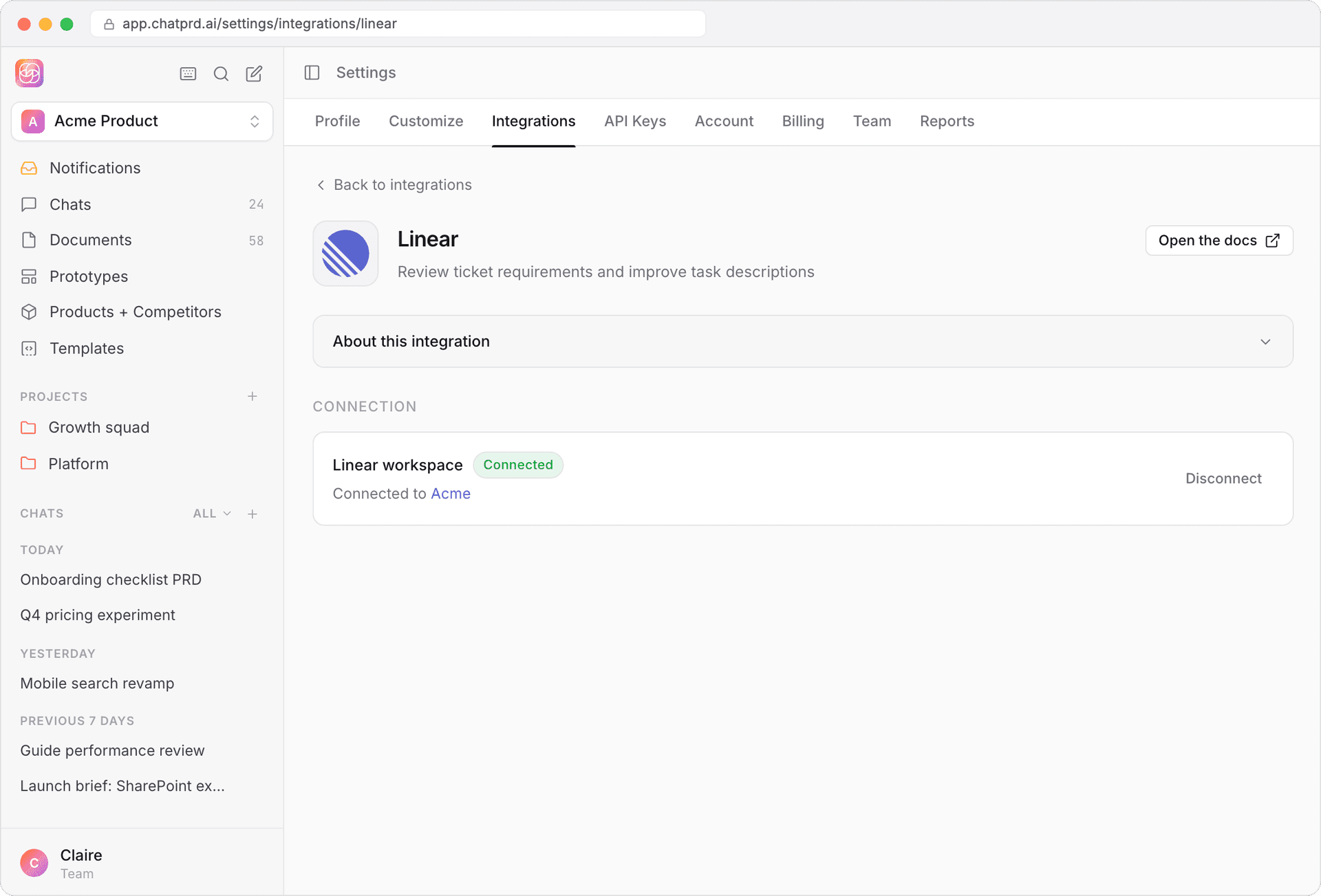
- Back in ChatPRD, you'll see your Linear workspace name and a Connected status.
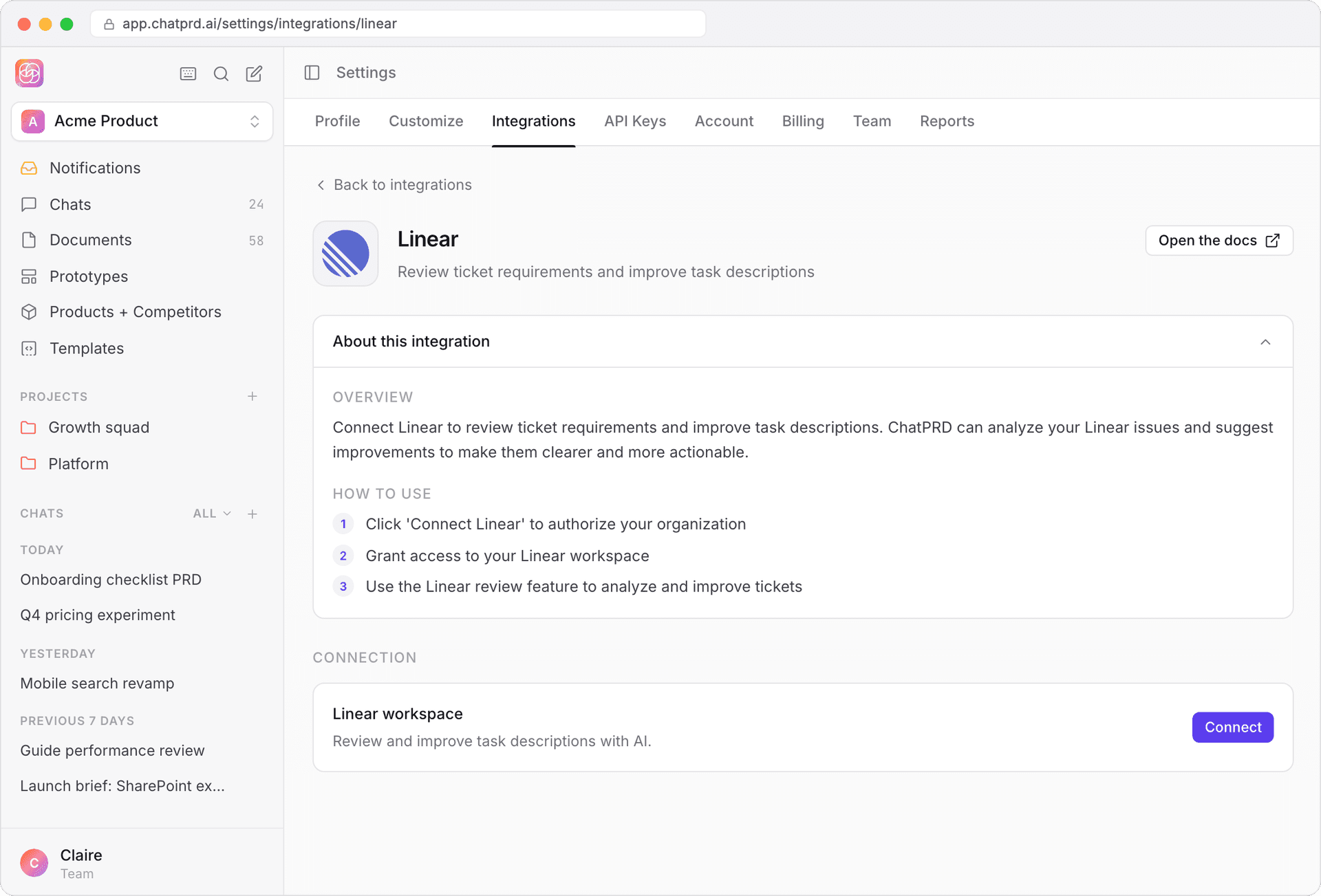
In a personal workspace you'll see "Linear is available for teams only" instead of a Connect button. Click Set up a team first. See Team Collaboration.
After connecting
- The Linear card in ChatPRD shows your workspace name and a Connected badge.
- You can disconnect at any time with Disconnect.
- Each ChatPRD organization can connect one Linear workspace.
Use ChatPRD in Linear
When you assign an issue to ChatPRD
Assign an issue to ChatPRD and it posts a comment introducing itself ("👋 Hey! I'm here to help with this issue…") and explaining how it can help with requirements, sub-issues or questions.

Mention ChatPRD in a comment
Mention @chatprd in any comment to ask for help. For example:
- "@chatprd can you improve this description?"
- "@chatprd break this down into sub-issues."
- "@chatprd what's missing from these requirements?"
ChatPRD replies in the thread. Reply in that thread to continue the conversation.

Ask ChatPRD to update issues
The agent can act on issues directly. Try:
- "Move this to In Progress"
- "Assign to Sarah" or "Bump priority to High"
- "Add the bug label" (the label must already exist on the team)
- "Create an issue in ENG to track the export bug"
It confirms in the thread when it's done.
Everything ChatPRD can do
- Improve issue description: suggests a better title and a detailed, structured description.
- Make sub-issues: breaks the issue into actionable sub-issues, each with a clear title and done criteria.
- Answer questions: responds to requirements questions or clarifies the issue.
- Update issues: changes status, assignee, priority and labels.
- Create issues: opens new issues on the team you name.
- Look things up: searches issues and projects, and lists teams and workflow states.
Troubleshooting
- Not connected? Make sure you're in a team on a Team or Enterprise plan, then try reconnecting.
- No response? Make sure you mentioned @chatprd.
- Label not added? The label must already exist on that Linear team.
- Error comment? Try again, or contact support.
FAQ
- Can I use this on a personal account? No. The Linear agent needs a ChatPRD team.
- What permissions does ChatPRD need? Access to read, comment on, update and create issues in your Linear workspace.
- How do I disconnect? Go to Settings > Integrations > Linear in ChatPRD and click Disconnect, then uninstall the ChatPRD app from your Linear workspace.
Support
If you need help, contact us and include:
- Your ChatPRD organization name
- Your Linear workspace name
- A description of the issue