v0 Integration
Learn about v0 Integration
v0 Integration
V0.dev lets you turn product requirements into working UI.
V0: Generate UI from Your PRDs
With the V0 integration, ChatPRD can pass your PRD context to V0, generate components, and embed a live preview you can iterate on directly in place.
Setting Up V0
- Go to Settings → Integrations.
- Find V0 and click Connect.
- Paste your V0 API token and save.
- The status will update to Connected once validated.
Availability: Pro and Team plans. Trial users can evaluate the integration.
About Tokens
- You can revoke or replace your token anytime in Settings → Integrations.
- Expired or invalid tokens automatically block V0 actions until updated.
What You Can Do
- Generate UI from a PRD: Ask the assistant to create a "v0 prototype" based on your document’s requirements.
- See a live preview: View the demo inside ChatPRD with a direct link to V0.dev.
- Iterate quickly: Send follow-up instructions to refine layout, styling, and behaviors.
- Keep multiple designs: Maintain more than one V0 chat per thread and switch between them.
Generate UI from a PRD
- Open a chat attached to your PRD.
- Prompt the assistant, for example:
- "Create a responsive dashboard in v0 with metrics cards, a line chart, and a sidebar navigation based on this PRD."
- Create a responsive dashboard in v0 with metrics cards, a line chart, and a sidebar navigation based on this PRD.
- ChatPRD will call V0 with your PRD context and create a V0 chat in your account. Note: this can take a long time!
- Once ready, you’ll see the V0 preview (demo URL) and a link to open the chat on V0.dev.
Note: If your thread includes multiple documents, ChatPRD automatically attaches them as context where possible.
Preview and Iterate
- Embedded preview: A canvas shows the current demo, which you can use to validate structure and styling.
- Refine with instructions: Ask the assistant to update the V0 chat, e.g.:
- "Add dark mode and improve mobile responsiveness."
- "Replace the area chart with a stacked bar chart and add a filter toolbar."
- External editing: Click the external link to open the V0 chat on V0.dev for deeper edits.
Managing Multiple V0 Chats in a Thread
- You can create multiple V0 chats from the same PRD.
- Switch the active chat to compare different design directions.
- Close/archive a chat when it’s no longer needed; your thread history is preserved.
Security & Privacy
- Token protection: Tokens are stored securely and are never sent to the browser or included in model prompts.
- Org-aware: For organization accounts, the server selects the correct profile token for the current org context.
- Data minimization: We send only the content needed to generate or update the requested UI.
- What we store: We retain metadata about the V0 chat (IDs, title, demo URL, timestamps) to power previews and iteration—not your code!
Troubleshooting
Authentication Errors
Symptoms: V0 actions fail immediately; messages reference missing/expired token.
Fix:
- Check Settings → Integrations → V0 and re-enter your token.
- If you’re in a team, confirm the correct org profile has a valid token.
Demo Preview Won’t Load
Symptoms: Blank or blocked iframe.
Fix:
- Open the external link to verify the V0 demo loads directly.
- Refresh the chat; if the issue persists, try again later.
API Limits or Temporary Failures
Symptoms: Rate-limit or network messages; operation retries.
Fix:
- Wait briefly and retry. If your V0 quota is exceeded, try later or reduce traffic.
Document Context Seems Ignored
Symptoms: Generated UI doesn’t reflect key requirements.
Fix:
- Ensure your PRD is attached to the chat/thread.
- Re-ask with a more explicit prompt referencing core requirements.
- Create a new V0 chat to explore a different direction.
If problems persist, reach out to support with:
- Time of the error,
- The thread link,
- Whether the issue occurred during creation or update.
Open in v0 (Quick Export)
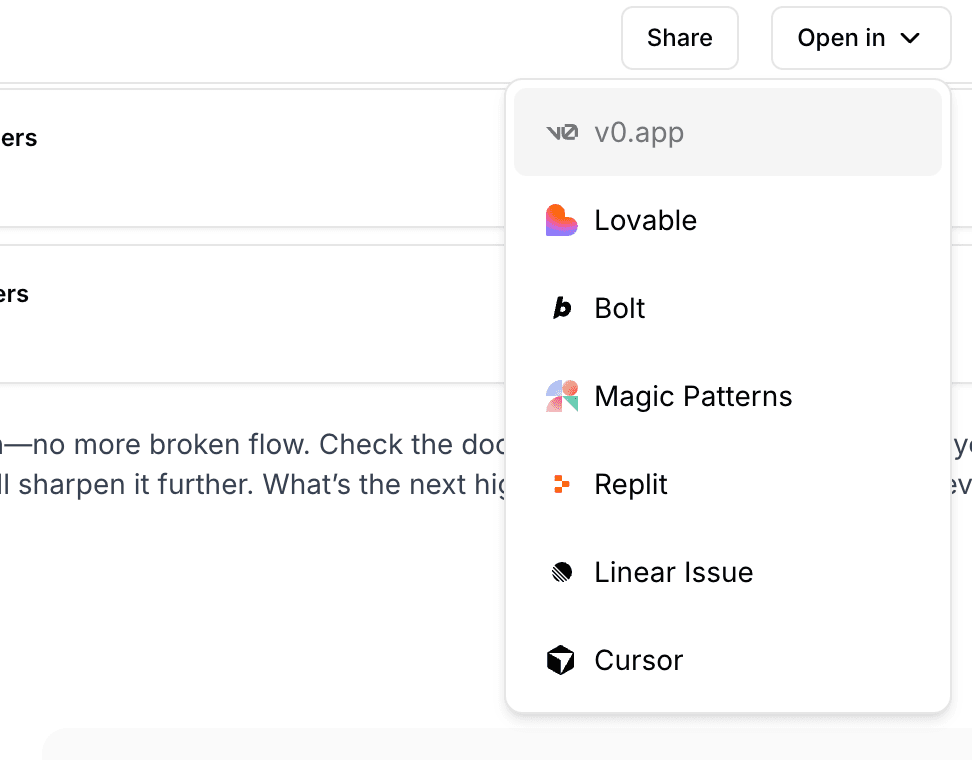
In addition to generating UI through the chat, you can also quickly export your document directly to v0.app using the Open in button. This is a faster way to get started with UI generation when you want to work directly in v0.
How It Works
- Open a chat with your PRD document attached.
- Click the Open in button in the chat header.
- Select v0.app from the dropdown menu.
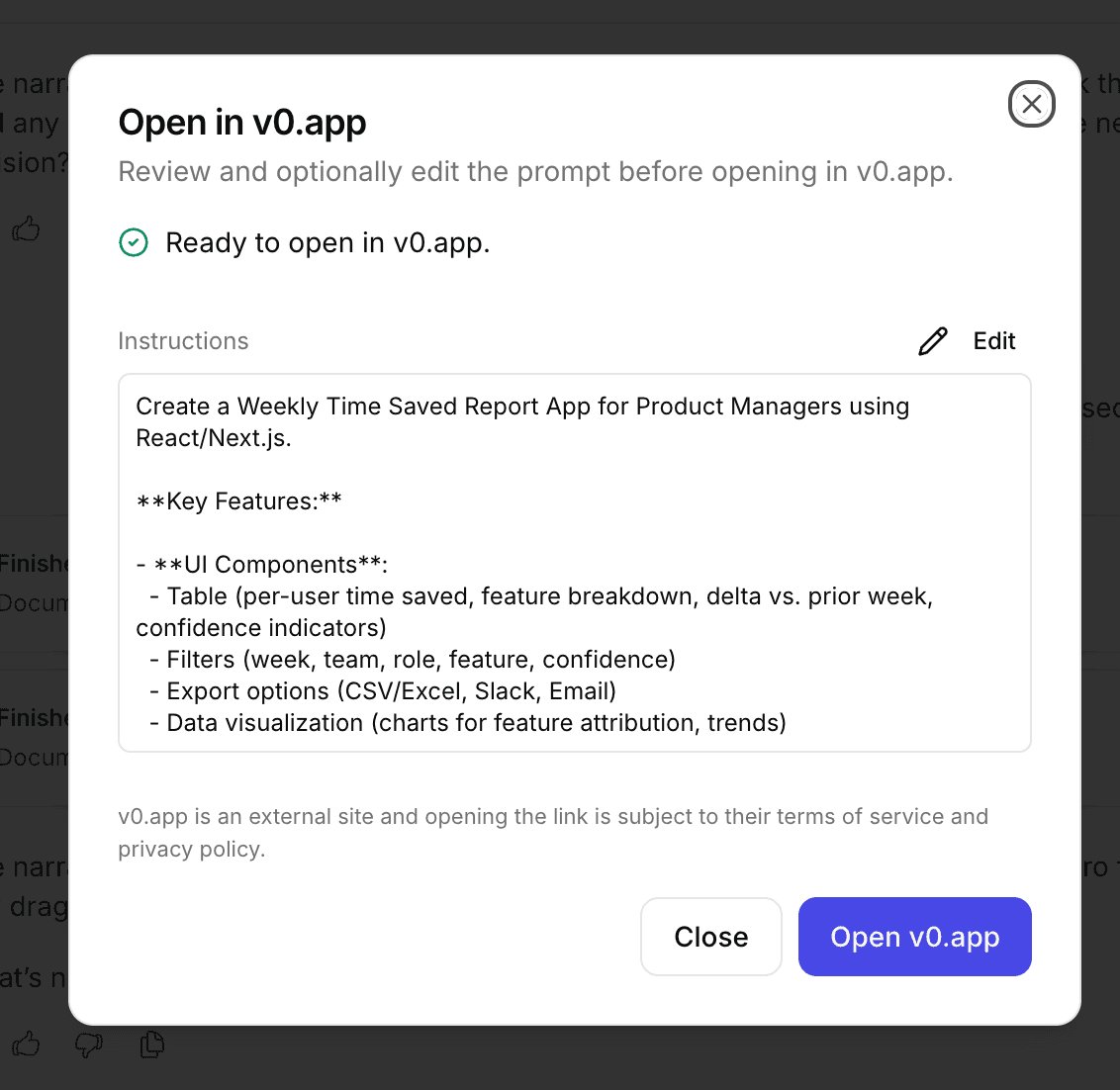
- A progress modal will appear while ChatPRD prepares your document. You can optionally edit the prompt before sending.
- Click Open to launch v0.app in a new tab with your document content pre-loaded.
Key Differences from Chat-Based Generation
- No V0 token required: The Open in v0 feature works without connecting your V0 API token. You will use your own v0.app account directly.
- Direct v0.app workflow: You work entirely within v0.app rather than seeing an embedded preview in ChatPRD.
- Editable prompt: You can customize the prompt before sending to v0.app to guide the UI generation.
- Temporary document sharing: Your document is shared via a secure temporary URL that expires after 5 minutes. The content is never permanently stored outside ChatPRD.
When to Use Each Method
Use the chat-based V0 integration when you want to iterate on UI designs within ChatPRD, maintain multiple design versions per thread, and see embedded previews alongside your PRD.
Use Open in v0 when you want a quick export to work directly in v0.app, prefer to use your own v0 account, or want to customize the prompt before generating.
FAQs
- Do I need to paste my token into prompts?
- No. Add the token once in Settings → Integrations, and you’re set.
- Can I use this without connecting V0?
- Yes. Core ChatPRD features work without V0. You just won’t see UI generation and previews.
- What exactly is stored when I create a V0 chat?
- We store the chat ID(s), title, session metadata, and demo URL to show previews and track updates. Your API token is not stored in the V0 chat and is never exposed client-side.
- Can multiple people on my team use the same V0 connection?
- Yes. Team admins can connect an organization token so teammates can generate and iterate without individually adding tokens.
- How do I remove access?
- Disconnect in Settings → Integrations → V0, or rotate your V0 token.
Tip: For best results, keep your PRD structured and explicit about UI requirements: information architecture, primary actions, key components, and responsive behavior.