MCP Connectors Overview
Bring live context from GitHub, Notion, Linear, Atlassian, Granola, Amplitude, Pendo, Shortcut, Microsoft Teams, SharePoint or your own MCP server into chat.
ChatPRD uses Model Context Protocol (MCP) connectors to pull real-time context from your everyday tools into chat. When a connector is on, ChatPRD can read from, and in some cases act in, the connected service while you work.
What are MCP connectors?
MCP is an open standard that lets AI assistants connect securely to external data. Export integrations push documents out of ChatPRD; MCP connectors bring context in. Ask a question, and ChatPRD can search your connected tools for relevant issues, pages, meeting notes, analytics and more.
Available connectors
Find them under MCPs and Connectors in Settings > Integrations.
- Granola: search meeting notes and transcripts, and reference decisions and action items.
- GitHub: repositories, issues and pull requests, for referencing engineering work while you write.
- Notion: pages, databases and docs.
- Linear: issues, projects and teams. Check what the team is working on and create tickets from chat.
- Atlassian (Jira, Confluence and Compass): Jira issues, Confluence pages and Compass data.
- Amplitude: product analytics.
- Pendo: product usage, guides, NPS and feedback. See Pendo.
- Shortcut: stories, epics, iterations and Shortcut Docs.
- Microsoft Teams: search messages and chats.
- SharePoint: search sites and documents. Team workspaces.
- Custom MCP: add any MCP server yourself.
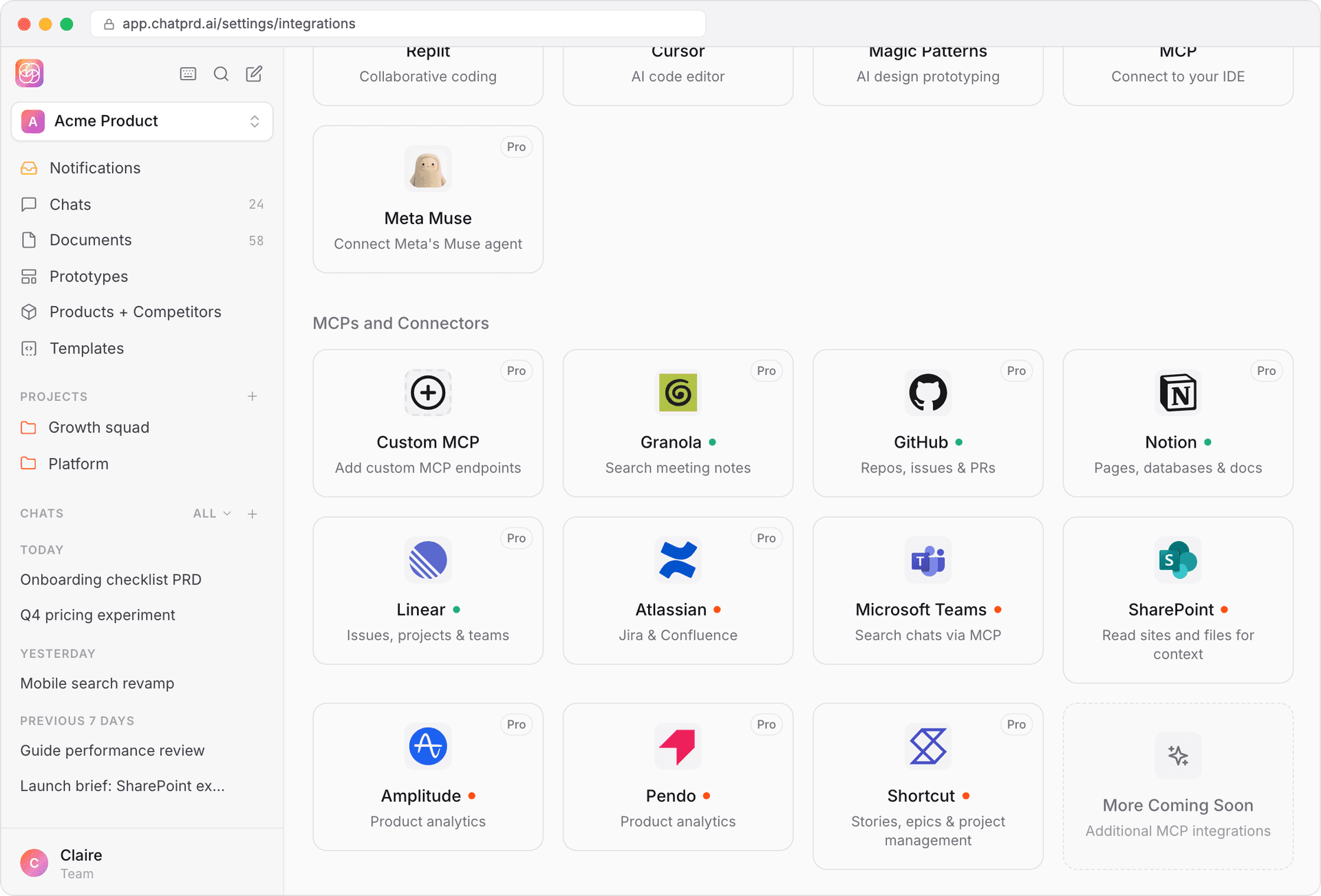
Some connectors are rolling out gradually, so you may not see all of them yet.
Requirements
- A Pro, Team or Enterprise plan (trials included).
- Each connector is authorized separately, with its own sign-in, from Settings > Integrations.
- Connectors are turned on per chat in the Tool Selector.
Connect a tool
- Go to Settings > Integrations.
- Scroll to MCPs and Connectors.
- Click the connector you want, for example GitHub or Notion.
- Click Connect and sign in to authorize ChatPRD. For Shortcut, click Connect with Shortcut.
- Once connected, the tool is available in Chat tools.
Each tile shows its status: a green dot means connected, amber means the sign-in expired and needs reconnecting, and red means it's not connected or has a problem.
Reconnect an expired connector
If a connector's sign-in expires, it shows Needs Authentication in Settings and in the Chat tools menu. Click Reconnect to sign in again. From chat, Reconnect takes you straight to the connector's sign-in and brings you back to the same chat. See Tool Selector.
Shortcut
Shortcut connects with OAuth: open Settings > Integrations > Shortcut and click Connect with Shortcut. ChatPRD can then search, read, create and update stories, epics, iterations and Shortcut Docs, and look up objectives, teams, members and workflows.
If you connected Shortcut before July 23, 2026 with a personal API token, it now shows as not connected. Connect once with Connect with Shortcut to switch to OAuth.
Use connectors in chat
- Open a chat.
- Click Chat tools (the wrench) in the composer.
- Switch on the connectors you want for this conversation.
- Start chatting. ChatPRD searches your connected tools when they're relevant.
You can also ask for a tool directly, for example "Search my Linear issues for the payments epic" or "Find the onboarding PRD in Notion".
Privacy and security
- Connections use OAuth 2.0 with PKCE.
- ChatPRD only reaches a connected tool when you turn it on in a chat.
- You can disconnect any integration at any time in Settings > Integrations.
- Rate limits apply per user to protect your connected accounts.