Integrations
Confluence Integration
Export ChatPRD documents to a Confluence space, set a default space, and search Confluence and Jira from chat with the Atlassian connector.
ChatPRD works with Confluence in two ways: export documents to a Confluence space, and search Confluence and Jira from a chat with the Atlassian connector. Each is connected separately.
Export documents to Confluence
Connect Confluence
- Go to Settings > Integrations.
- Under Document Import / Export, open Confluence.
- On the Confluence workspace card, click Connect.
- Sign in with your Atlassian account and approve the permissions ChatPRD asks for.
- Back in ChatPRD, the card shows Connected.
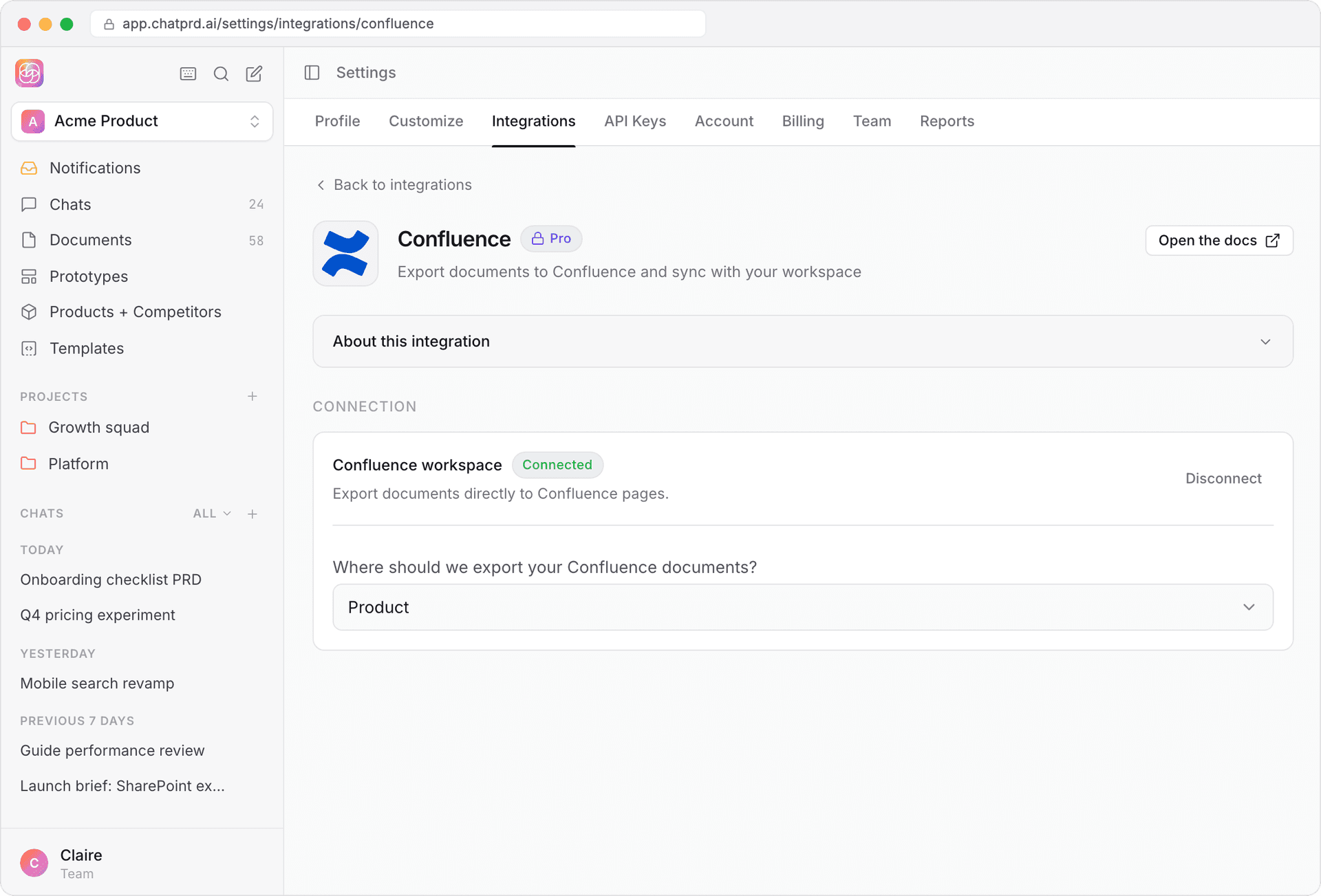
Choose a default space
On the same Confluence page, under Where should we export your Confluence documents?, search for a space and select it. You'll see Confluence default space saved.
Export a document
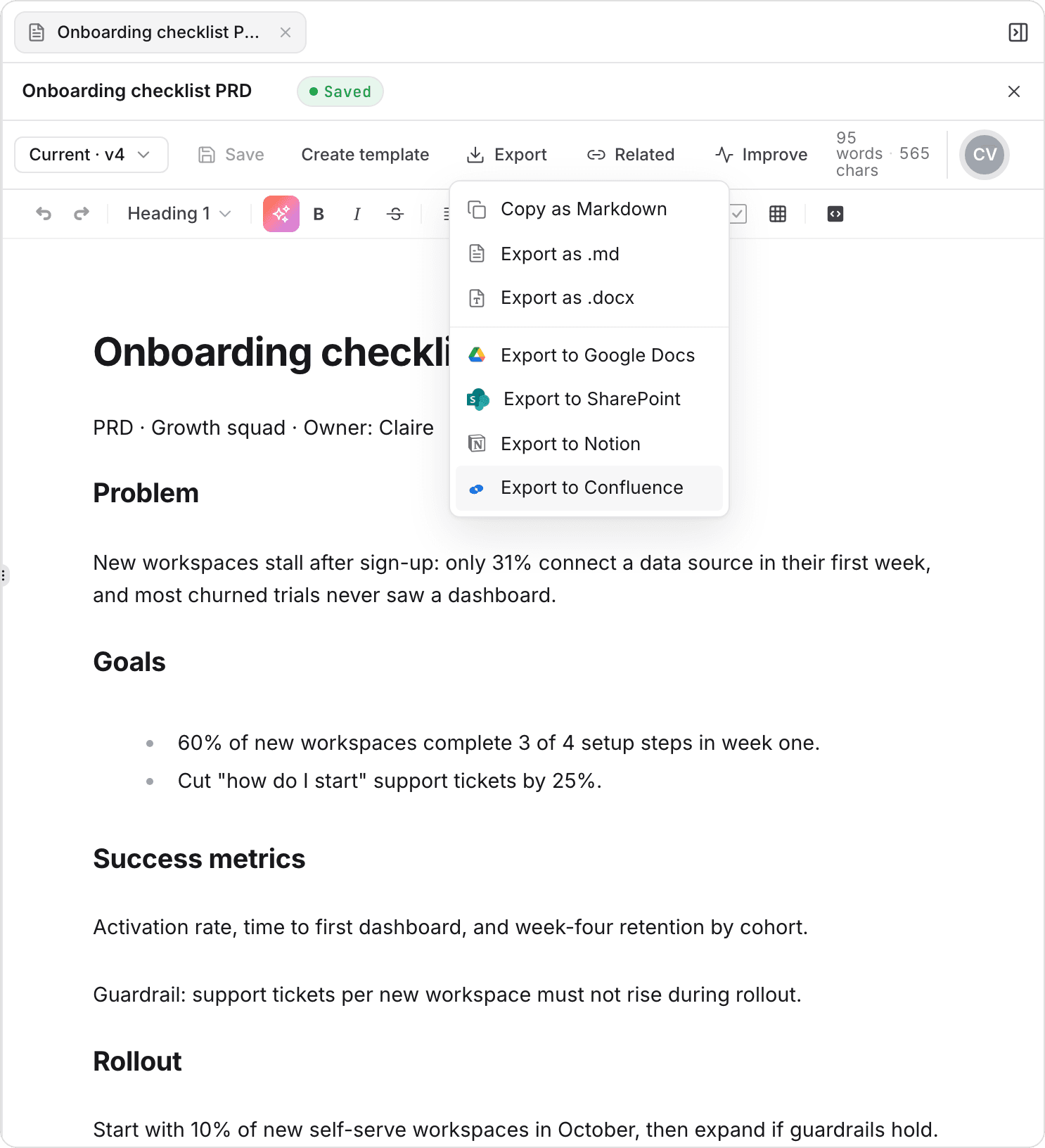
- Open the document in the editor and click Export.
- Choose Export to Confluence.
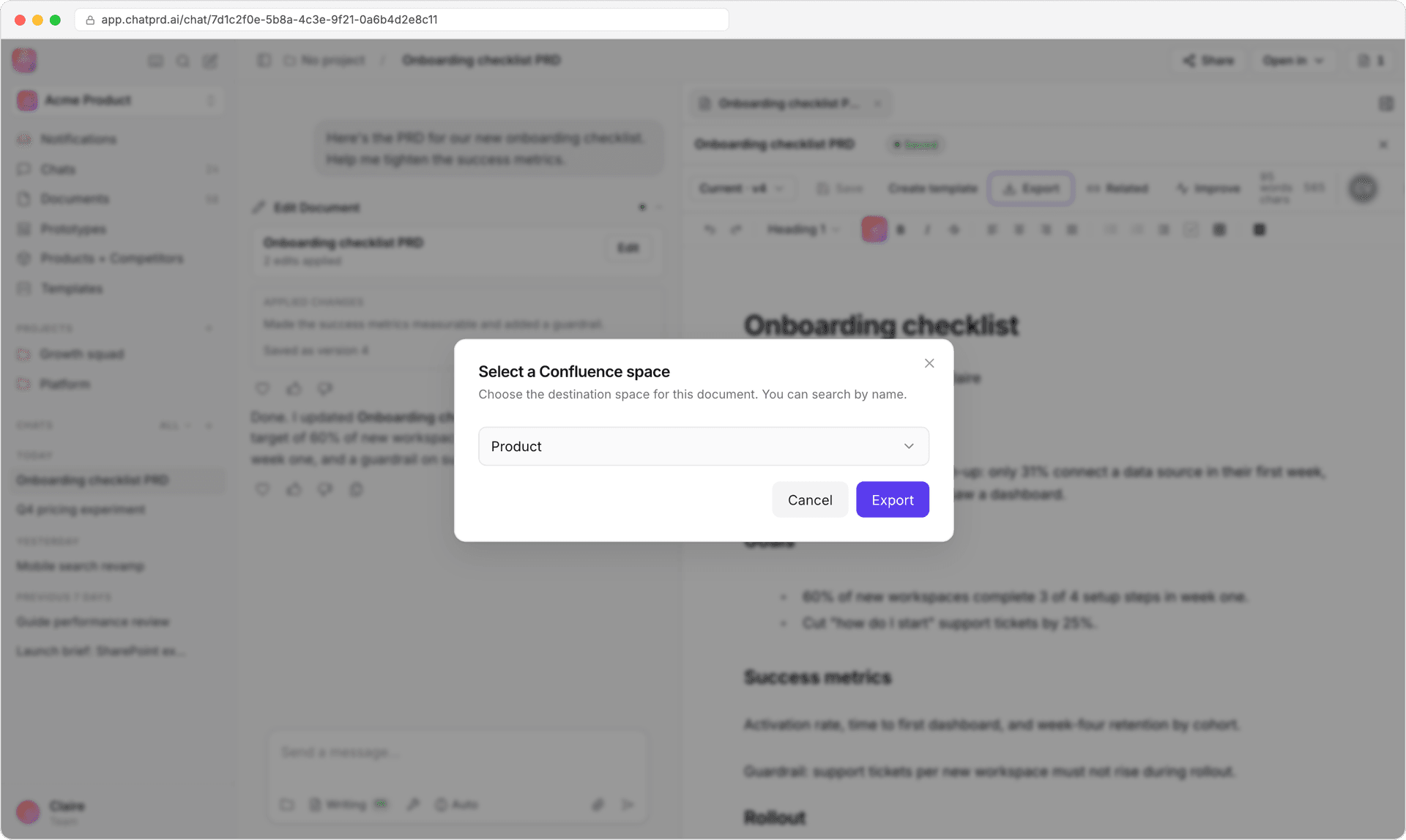
- In Select a Confluence space, your default space is already selected. Change it if you like, then click Export.
- The toast Exported to Confluence has a View in Confluence link.
Search Confluence and Jira from chat
The Atlassian connector lets ChatPRD search and read Confluence pages and Jira issues while you chat. It's available on Pro, Team and Enterprise plans.
- In Settings > Integrations, scroll to MCPs and Connectors and open Atlassian.
- Click Connect and sign in with Atlassian.
- In a chat, open Chat tools (the wrench) and switch on Atlassian.
- Ask a question, for example "Find the Confluence page about our onboarding research and the open Jira issues for it."
See MCP Connectors Overview and Atlassian MCP connector.
Troubleshooting
- Connection issues
- Check that the Confluence card shows Connected in Settings > Integrations > Confluence.
- If it shows Needs Authentication or Connection issue, click Reconnect or Review connection.
- Export failures
- If you see Confluence permissions required, click Reconnect Confluence and approve the permissions again.
- Make sure you can create pages in the space you chose.
- Try again, or try a smaller document first.
- Permission errors
- Click Disconnect, then connect again to refresh ChatPRD's access.
If problems persist, contact ChatPRD support.
Last updated Oct 12, 2026
Ready to get started? You can try ChatPRD for free 👉Sign Up Now