Slack Integration
Connect Slack for notifications, chat with @chatprd in Slack, get rich ChatPRD link cards, and try code channels (beta).
Connect Slack to get notifications, ask ChatPRD questions right in Slack, and see rich previews when someone shares a ChatPRD document. This page covers personal and team setup.
Set up Slack
Go to Settings > Integrations and open Slack. There are two ways to connect:
- Personal account: receive personal notifications in Slack.
- Organization workspace: enable team collaboration in Slack. Shown in team workspaces; only Admins can connect it.
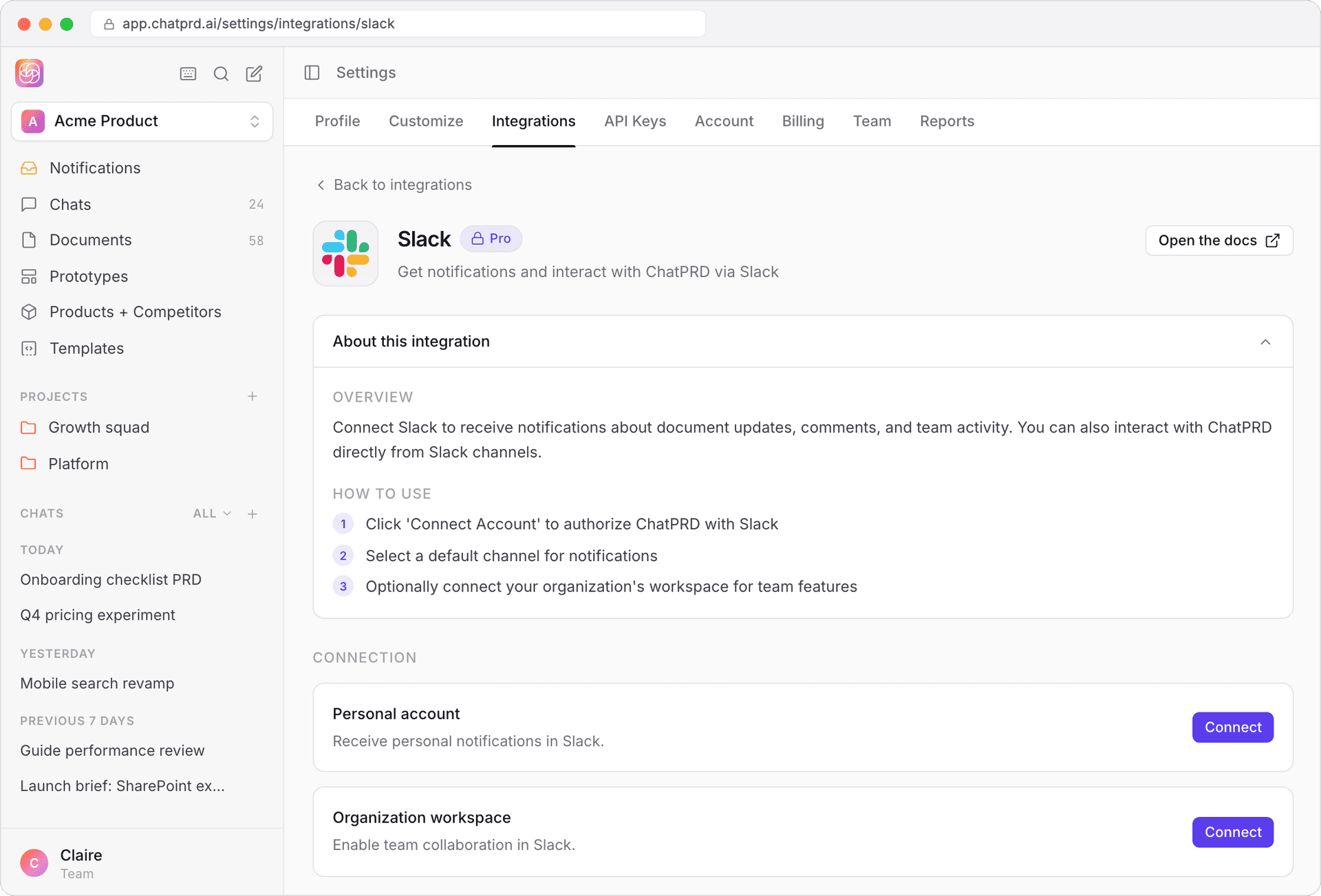
- Click Connect on the card you want.
- Sign in to Slack.
- Choose the workspace to connect and grant ChatPRD the permissions it asks for.
- You're returned to ChatPRD, and the integration shows as Connected.

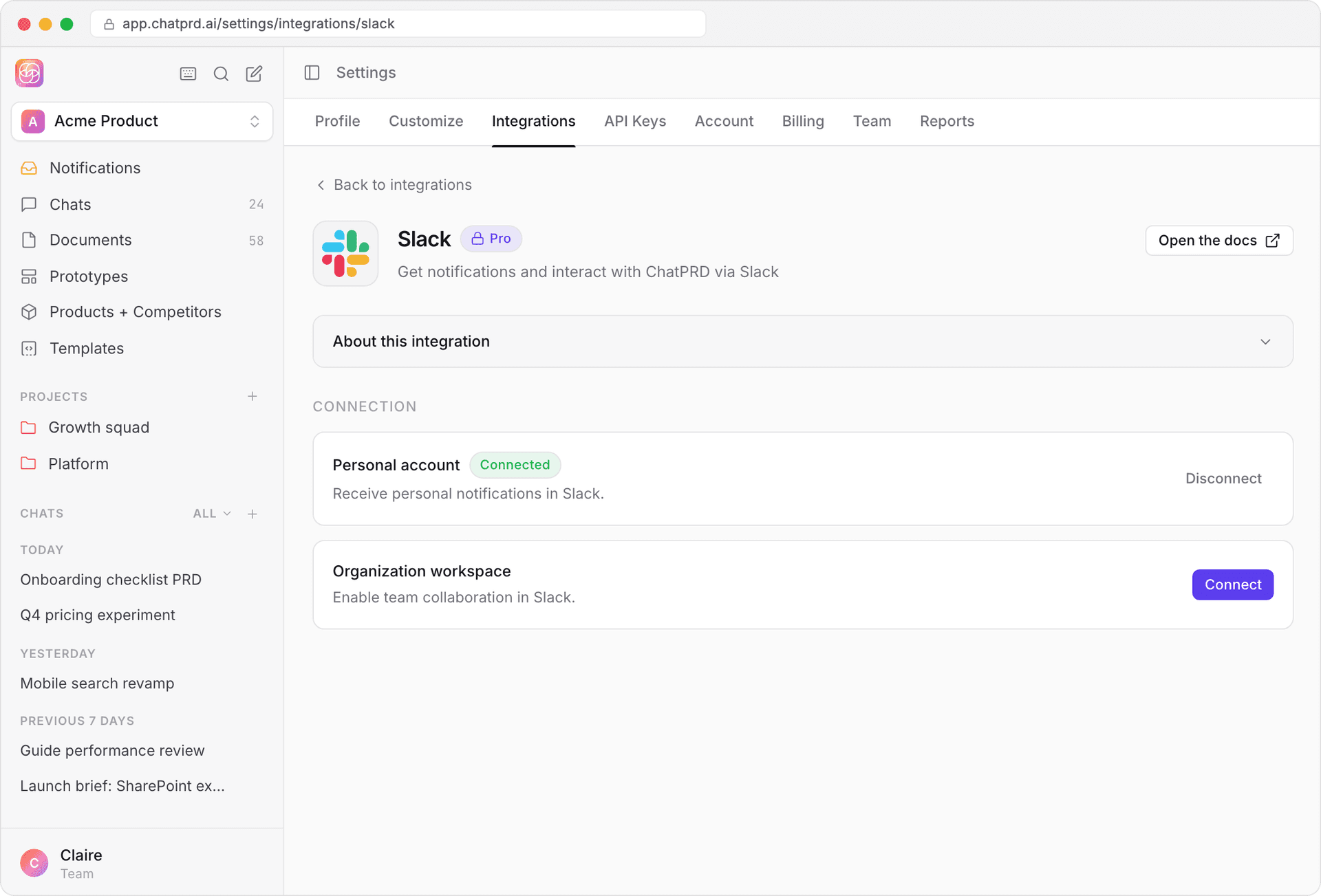
Team settings
After an Admin connects the organization workspace, choose a default channel for notifications under Please select a default channel for notifications. You'll also see how many teammates are connected.
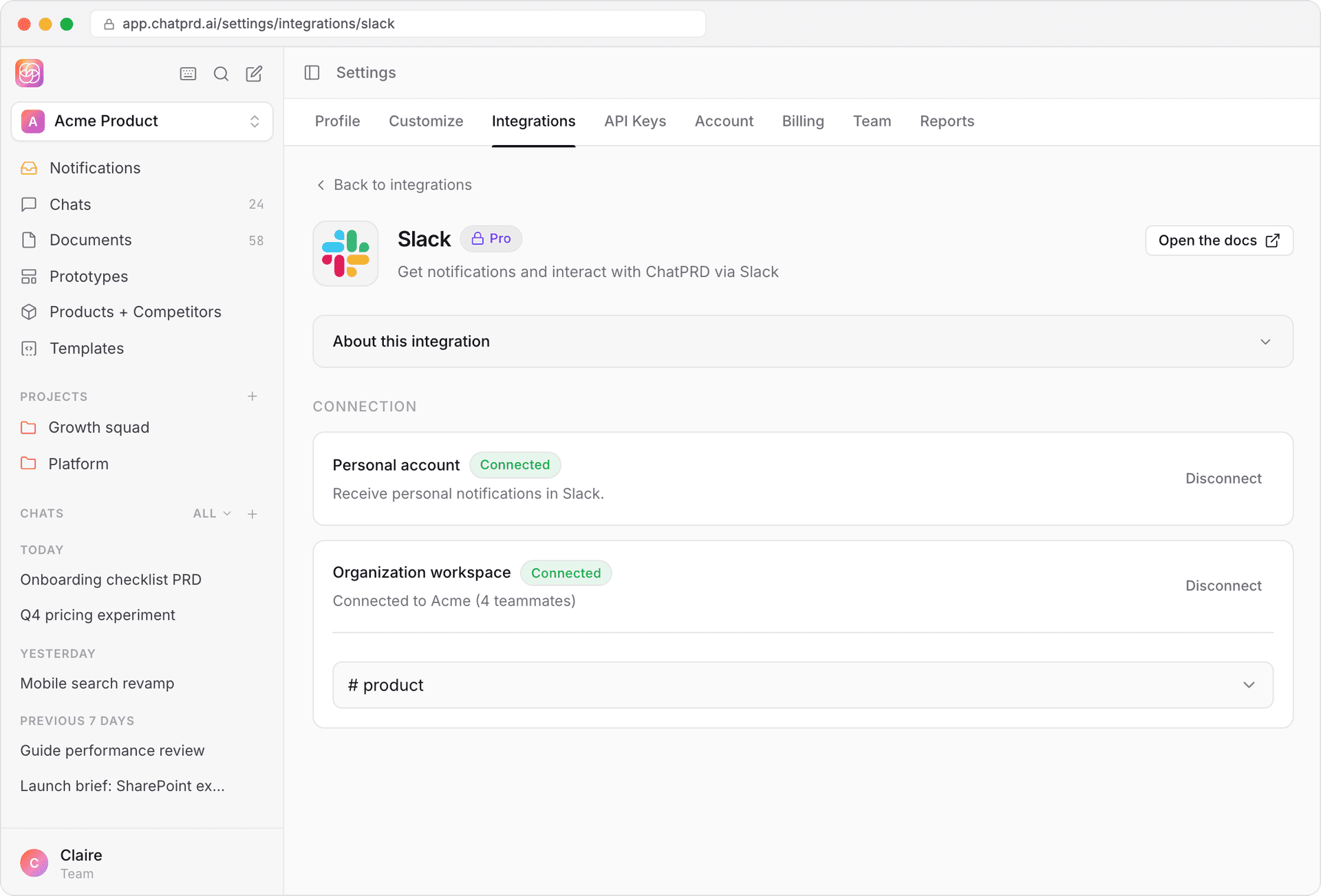
Use Slack with ChatPRD
Notifications
ChatPRD sends you a direct message in Slack when:
- A teammate shares a chat with you
- Someone requests access to your chat
- A project is shared with your team
Message @chatprd in Slack
- Type @chatprd followed by your question or prompt in any channel. You need to add @chatprd to a channel before it can reply there.
- ChatPRD replies in the Slack thread.
- Keep the conversation going in the thread. The thread is also linked in the ChatPRD app.
- You can also DM @chatprd.

Rich document links
When someone shares a ChatPRD document link in Slack, it unfurls as a card with the title, a preview, who created it and when it was created and updated. Click the card to see more, with an Open in ChatPRD button.
Code channels (beta)
For workspaces in the beta, mentioning @chatprd in a channel about document work (a PRD, spec, brief, RFC, roadmap or similar) opens a dedicated channel for that work. ChatPRD replies with a link: "Working on this in #channel — join me there and @-mention me to pick it up."
- Each document appears as a canvas tab in the channel and updates as you iterate, with an Open in ChatPRD link.
- When you're finished, say "ship it" or "we're done". ChatPRD wraps up, and the channel is archived. Everything stays searchable, and the documents live on in ChatPRD.
Code channels need a newer Slack permission. If your workspace installed the ChatPRD Slack app before August 29, 2026, ChatPRD keeps answering in threads instead; reinstall the app from Settings > Integrations > Slack to use code channels.
Troubleshooting
- Connection issues
- Check that Slack shows as connected in Settings > Integrations.
- If it shows as not connected, connect again.
- Make sure you granted all the permissions ChatPRD asked for.
- Notifications not arriving
- Notifications arrive as direct messages from ChatPRD. Check your Slack DMs.
- Make sure your personal Slack account is connected in Settings > Integrations > Slack.
- Make sure the ChatPRD app is still authorized in your Slack workspace.
- @chatprd not responding
- Make sure the app is installed in your workspace, you've connected your Slack account in ChatPRD, and @chatprd has been added to the channel.
- Try reinstalling the Slack app from Settings > Integrations.
If problems persist, contact ChatPRD support.