Prototypes
Turn a PRD or an idea into a working, multi-page React prototype, refine it element by element, and share or download the code.
ChatPRD can build a real, clickable prototype from your conversation: a multi-page React app you can click through next to the chat, check on mobile, change one element at a time, and share or download as code. It builds from the chat, the document you have open, and images you upload.
Prototypes is rolling out to workspaces gradually. If you don't see Prototypes in the Chat tools menu or the sidebar, it isn't on for your workspace yet.
Turn on Prototypes for a chat
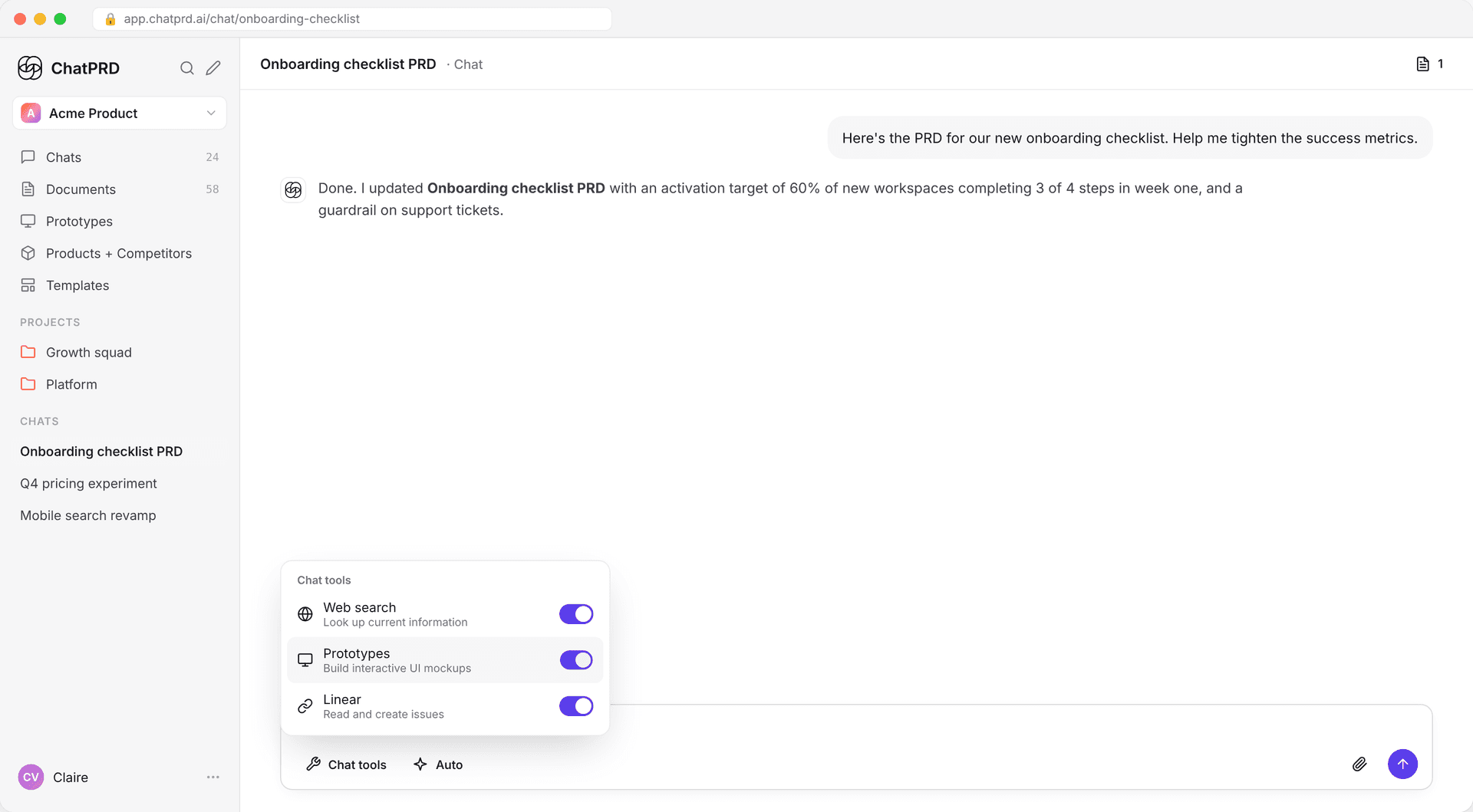
- In the chat composer, open Chat tools (the wrench).
- Switch on Prototypes ("Build interactive UI mockups").
The setting is per chat and off by default, so ChatPRD only builds a prototype when you want one.
Ask for a prototype
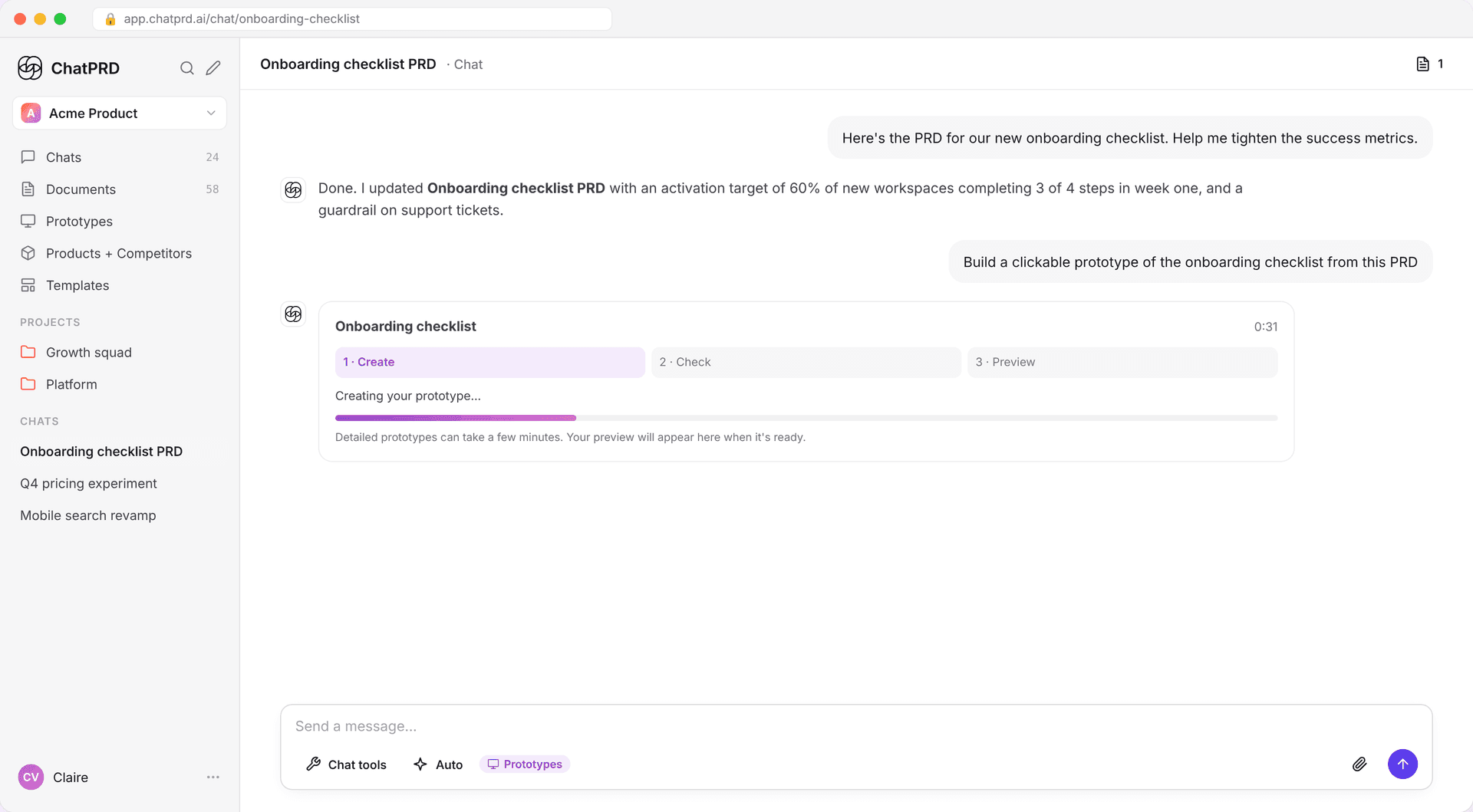
Describe what you want in plain language, for example "Build a clickable prototype of the onboarding checklist from this PRD". If a document is open, ChatPRD builds from it.
While it works, a progress card shows three steps, Create, Check and Preview, with a status line and how long it has been running. Detailed prototypes can take a few minutes. If ChatPRD finds a build problem, it fixes it before showing you anything.
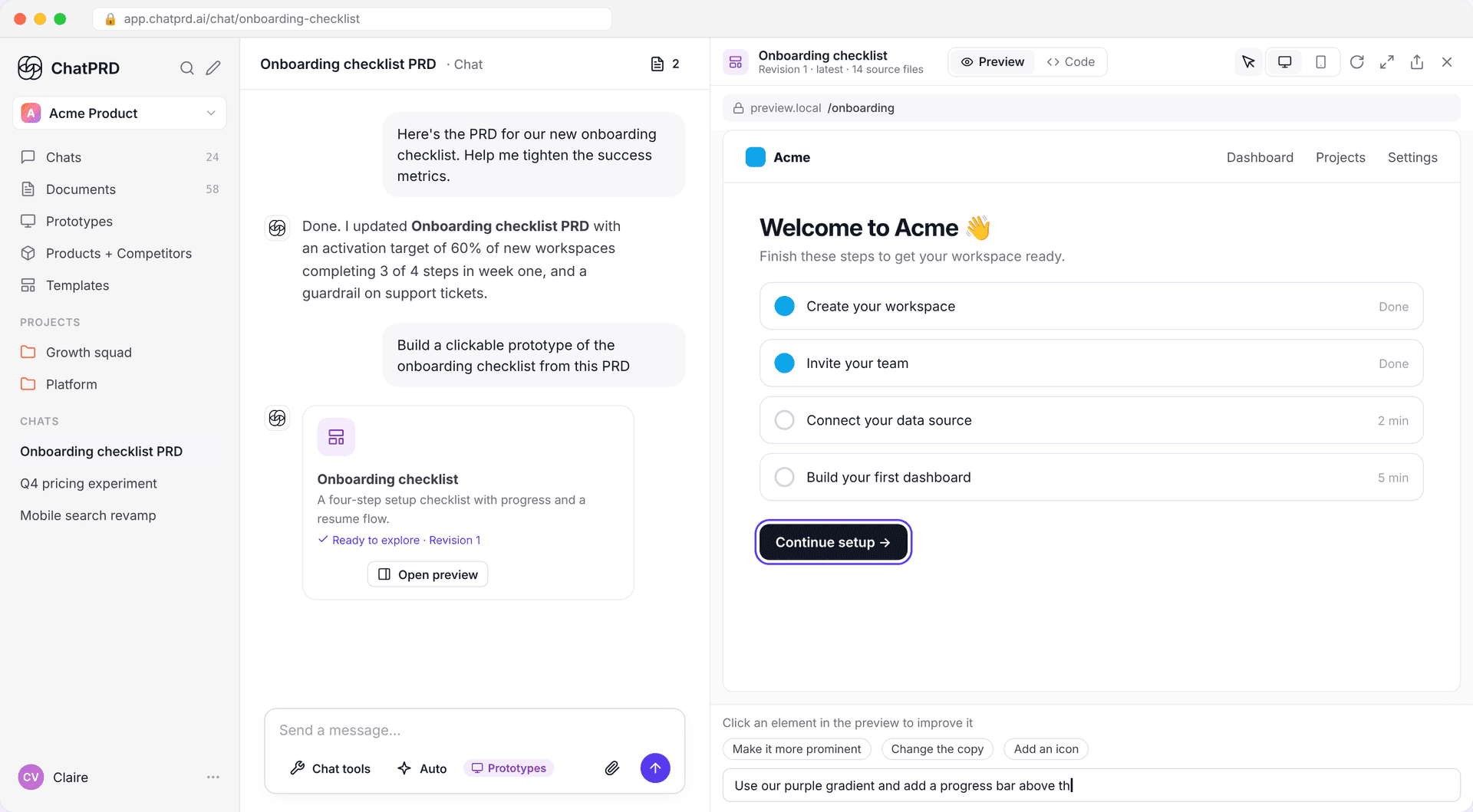
When it's done, the card reads Ready to explore, with the revision number. Click Open preview. On larger screens, the preview opens on its own.
Explore the preview
The preview opens beside the chat. Websites get real pages and links: the address bar shows where you are, and you can type a path to jump to a page.
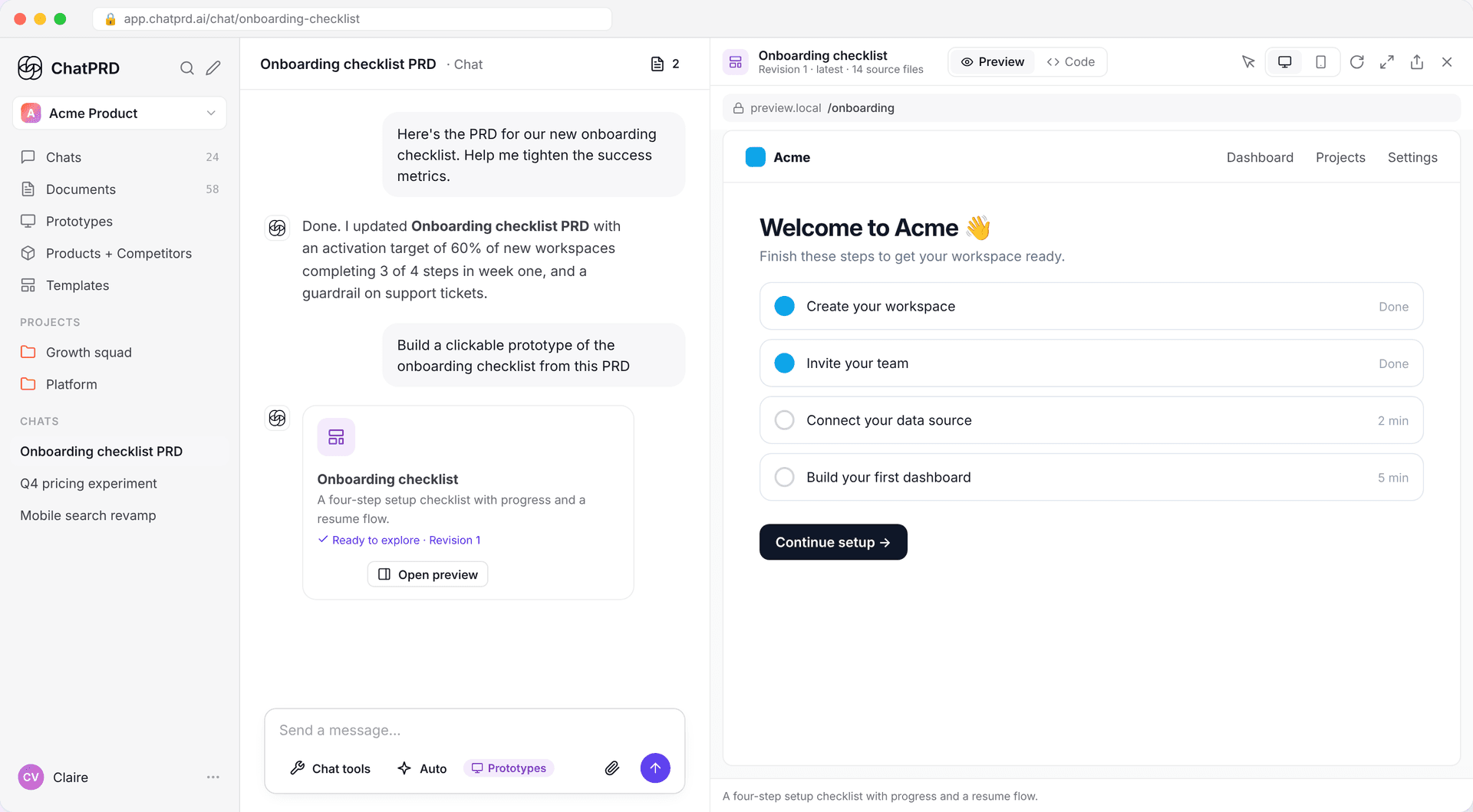
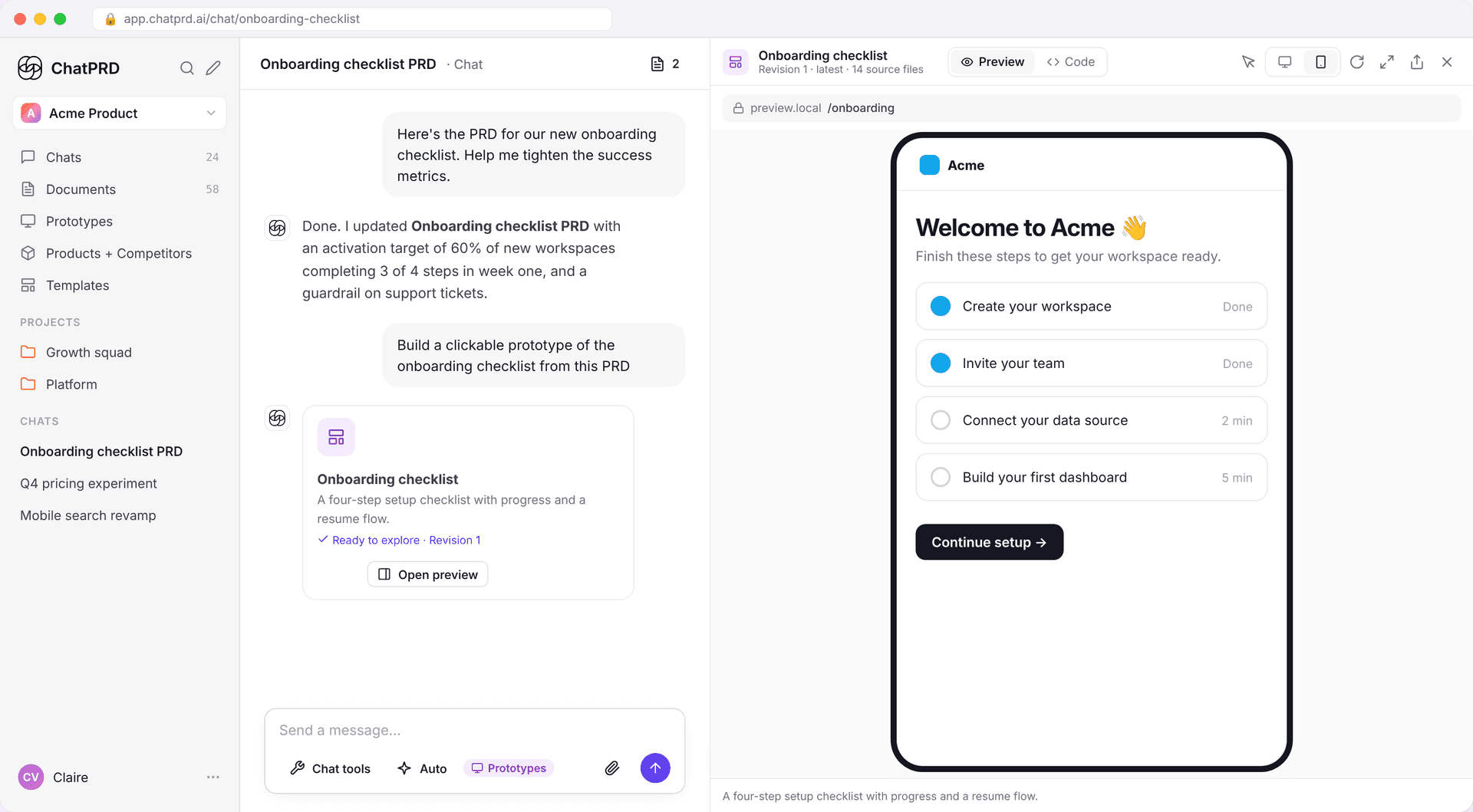
Use the toolbar to:
- Switch between Desktop preview and Mobile preview (a phone-sized frame).
- Refresh the preview.
- Open preview in new tab to see it full screen.
Change part of the prototype
Ask for changes in the chat, or point at what you want changed:
- Click Select element (the pointer icon).
- Click the element in the preview.
- Pick a suggestion, or describe the change and press Enter.
ChatPRD changes only that page or element instead of rebuilding the whole app. Every change creates a new revision, and the revision menu in the header lets you go back to an earlier one.
See and download the code
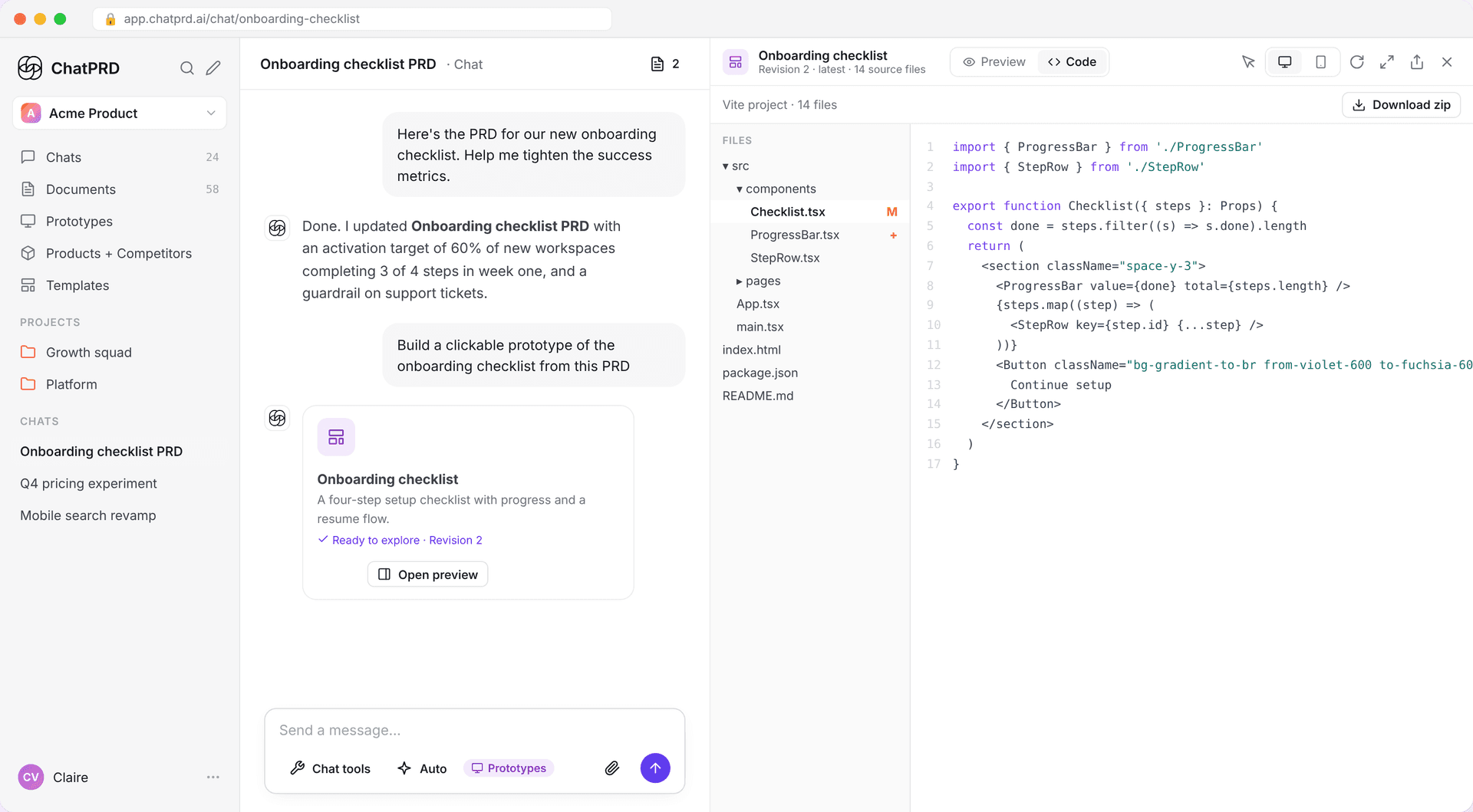
Switch the header toggle from Preview to Code to browse the project: a file tree on the left (changed files are marked) and the selected file on the right.
Click Download zip to get the full Vite project. The zip includes a README and dev, build and preview scripts, so an engineer or a coding agent can pick it up directly.
Share a prototype
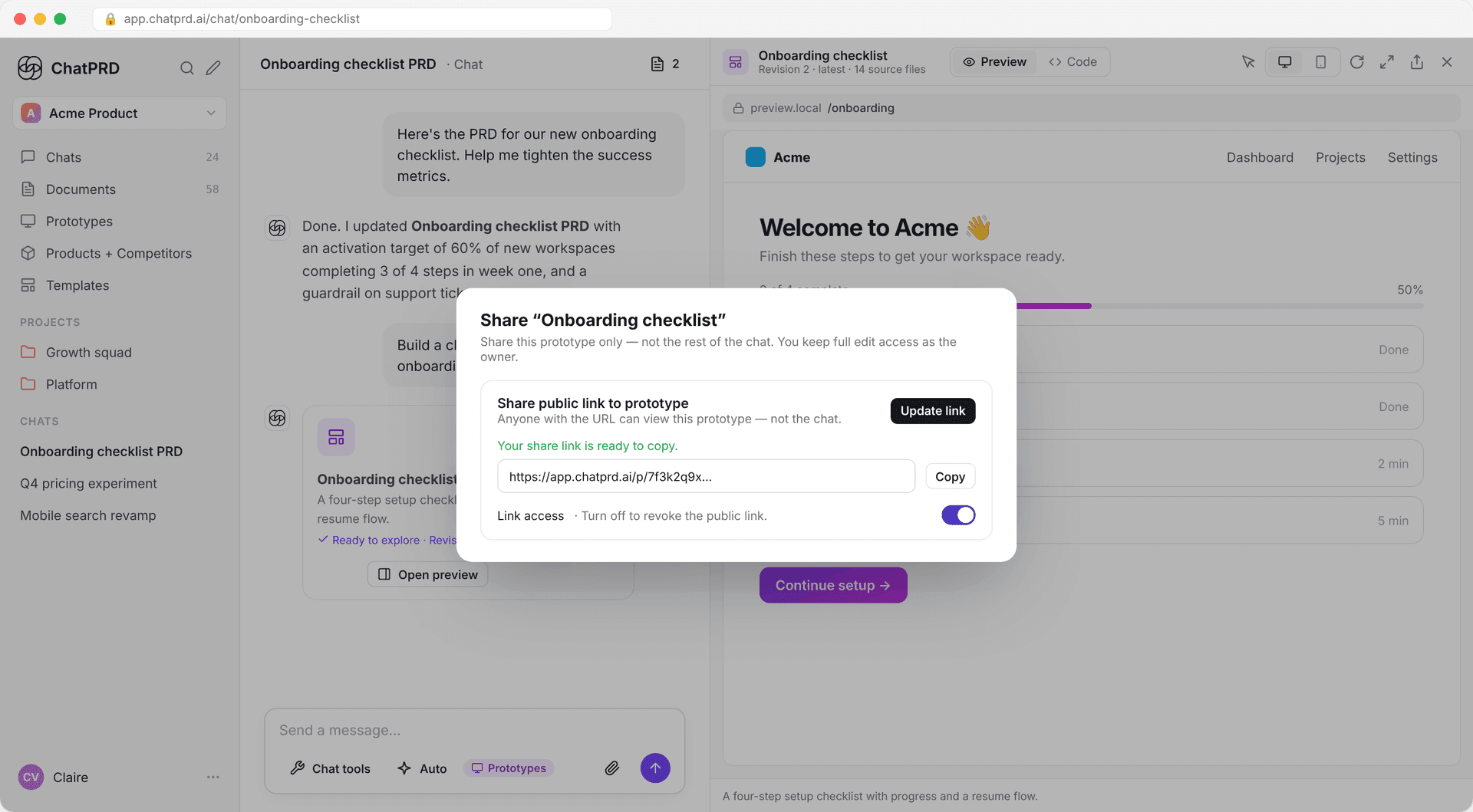
Click Share prototype in the preview header. You share only the prototype, never the rest of the chat.
- Team workspaces: share with your whole organization, or use Share with specific people to pick teammates. Viewers sign in to see it.
- Personal workspaces: turn on Share public link to prototype and click Create link to get a link anyone can open without signing in. Turn off link access to revoke it.
Shared links always show the latest successful revision. Only the chat owner can manage sharing.
Find your prototypes
Every prototype you've built, and every one shared with you, is in Prototypes in the sidebar. Search by name, switch between tile and table views, and open any one to jump back into its chat.
Inside a chat, the switcher in the chat header lists every document and prototype that chat produced. See Writing documents.