Writing Documents
ChatPRD can help you write documents and generate document artifacts following your selected template.
Writing Documents
To write documents with ChatPRD:
- Ensure that Writing Mode is ON
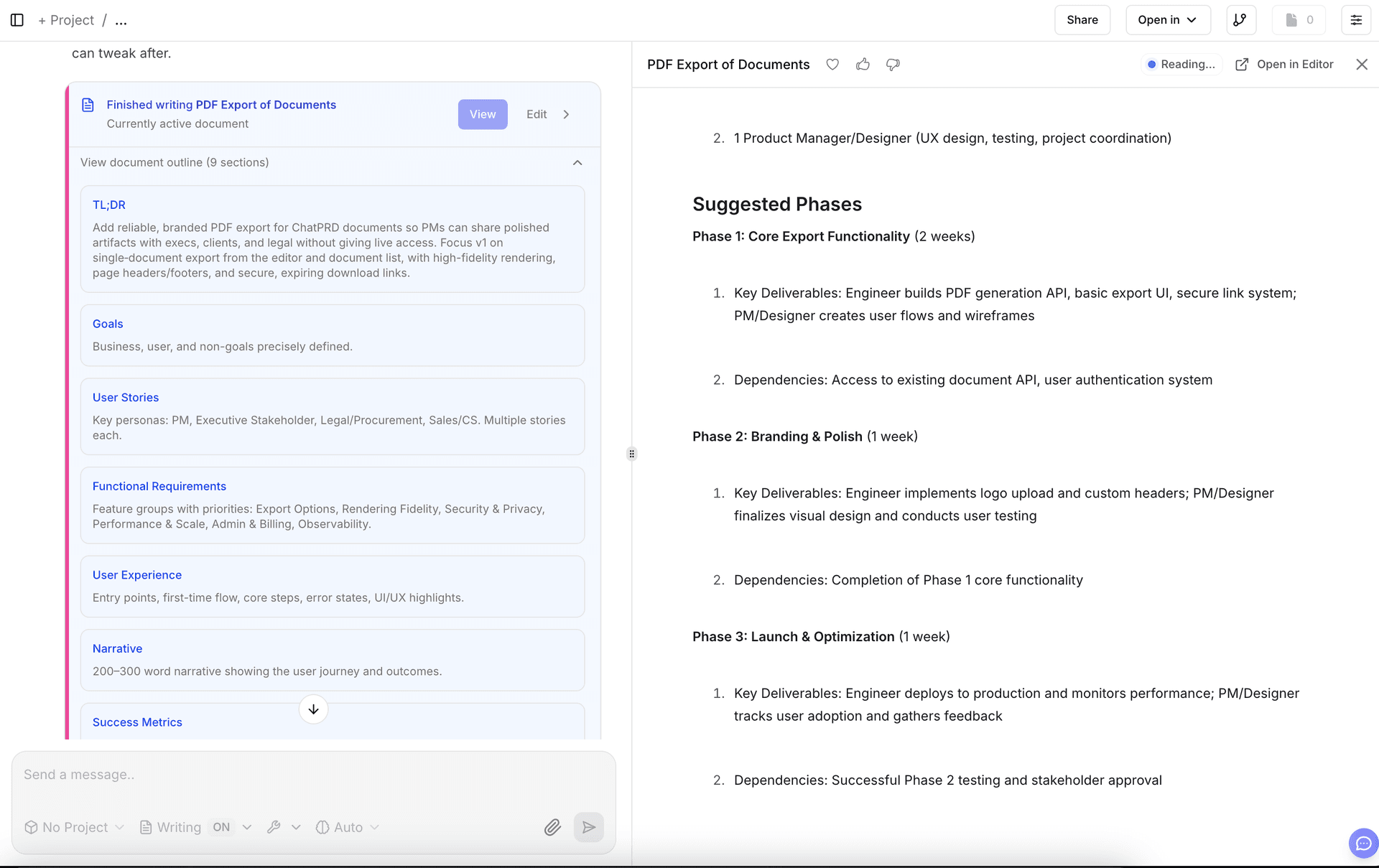
- When writing a document, ask ChatPRD to "write a document" or "create a document"
When the writing tool is triggered, a document outline will display and a document will stream in the document panel.
Editing Documents
When editing a document, you have two options:
- Asking "edit this document" will make specific edits to your document and show a before/after change
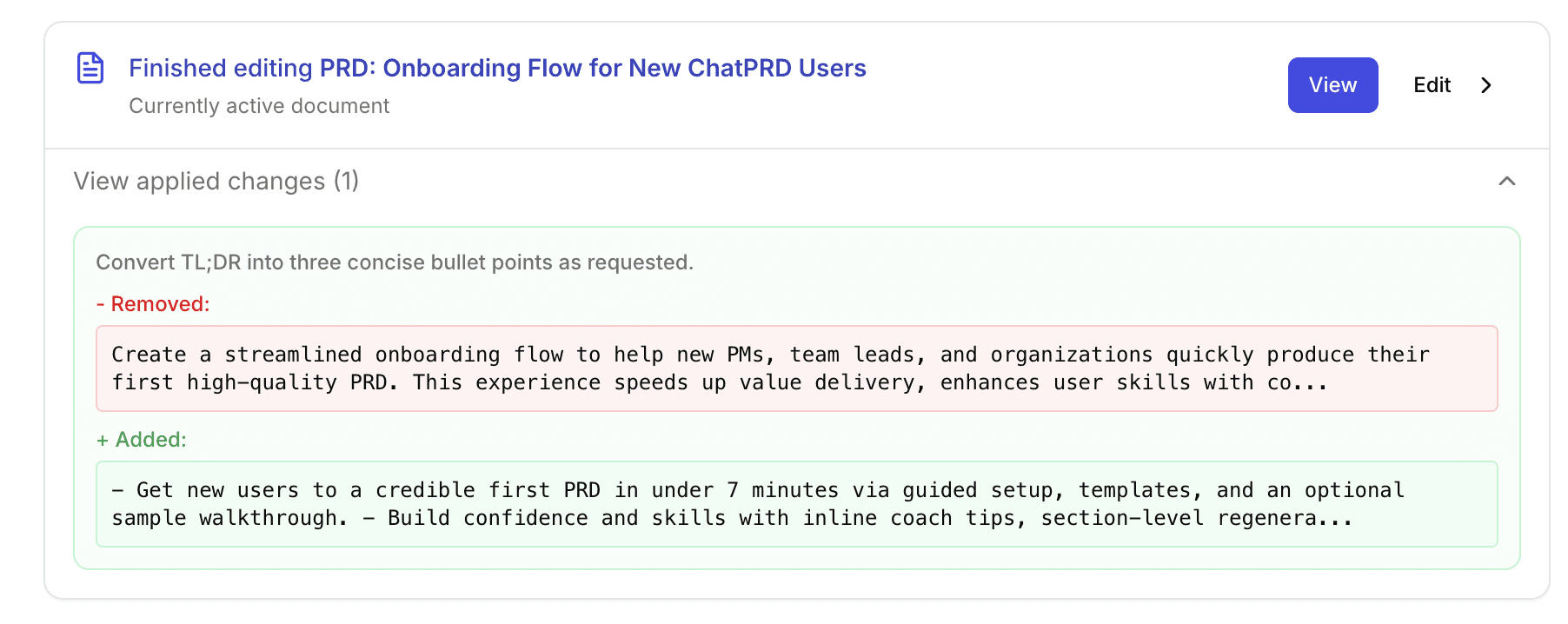
- Asking to "rewrite this document" will overhaul your entire document and make major changes
Writing Mode
You can turn on or off writing mode in the chat. This will tell ChatPRD whether or not you want to focus on document generation, and if so, what settings you want to apply to your documents.
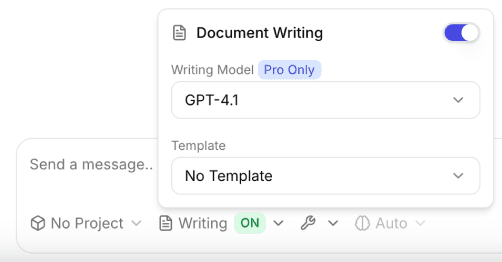
You can toggle on writing mode by opening the writing mode settings at the bottom of the chat window.
In writing mode settings you can:
- Turn on and off writing tools
- Select your writing model (Pro Plans only)
- Select your template
The templates available in writing tools are:
- Default ChatPRD templates
- Your custom templates
- Shared team templates (on Team plans)
The selected template will guide ChatPRD's responses and document structure. You can also use the "No Template" template if you don't have a set structure in mind.
Switching to Document Mode
To edit the document being created in your conversation:
- Click the Document Icon in the top right of the chat header
- OR Click "Edit Document" from the document preview
- The interface will split into two panels:
- Chat on the left
- and Document editor on the right
- You can now directly edit the document while maintaining the chat context.
- Toggle back to chat-only mode by closing the document
Managing Multiple Documents
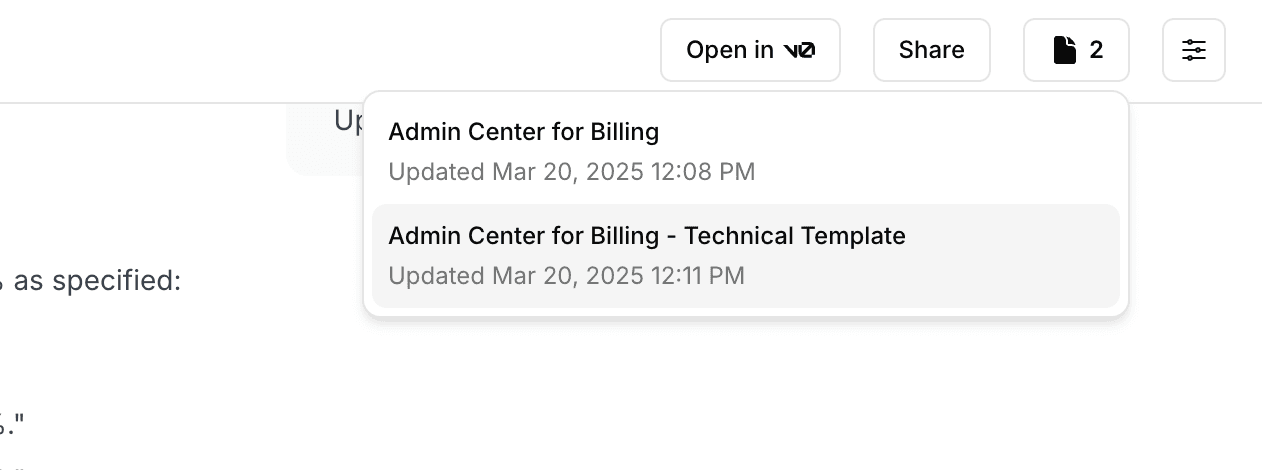
In a single chat thread, you can create and manage multiple documents:
- Use the document switcher in the chat header to navigate between documents.
- Ask the chat to create a new document with a new template
- Each document maintains its own content while sharing the chat context.
Document Versioning
ChatPRD automatically tracks versions of your documents, allowing you to see how your document has evolved over time and switch between different versions.
How Versioning Works
Every time you or the AI makes significant changes to a document, a new version is created. Versions are created when:
- The AI creates a new document
- The AI edits or rewrites an existing document
- You manually save a version using the save button
Viewing Version History
To view your document's version history:
- Open a document in the editor
- Look for the version selector in the document toolbar
- Click to see a list of all versions with timestamps
Each version shows:
- Version number (v1, v2, v3, etc.)
- How it was created (Created, Edited, or Rewritten)
- Date and time of the version
Switching Between Versions
You can switch to any previous version of your document:
- Click on the version selector
- Select the version you want to view
- The document will update to show that version's content
Note: When you switch versions, your current changes are automatically saved before switching to prevent data loss.
Working with Versions
You can use versioning to:
- Review how your document has evolved
- Restore a previous version if needed
- Compare different iterations of your PRD
- Track AI-generated changes vs. manual edits
Document versioning is available on all ChatPRD plans.