Creating & Using Projects
Give ChatPRD focused context for each product or initiative: create a project, add instructions and files, keep its chats and documents together, and share it with your team.
A project is a home for one product, feature or initiative. It holds instructions, files, chats and documents, so every chat in the project starts with the right context, and you never re-upload the same files.
Why use projects?
- Context without repetition: add files and instructions once, and every chat in the project uses them.
- Focus: keep separate initiatives, like growth, integrations or pricing, from mixing.
- Teamwork: share a project so your team works from the same context.
Create a project
- Click Projects in the sidebar (or the + next to it).
- Click Create Project.
- Enter a Name and a Description / Instructions. Use this field for product context, terminology and style guidelines that every chat in the project should follow.
- Click create. Your project opens on its own page.
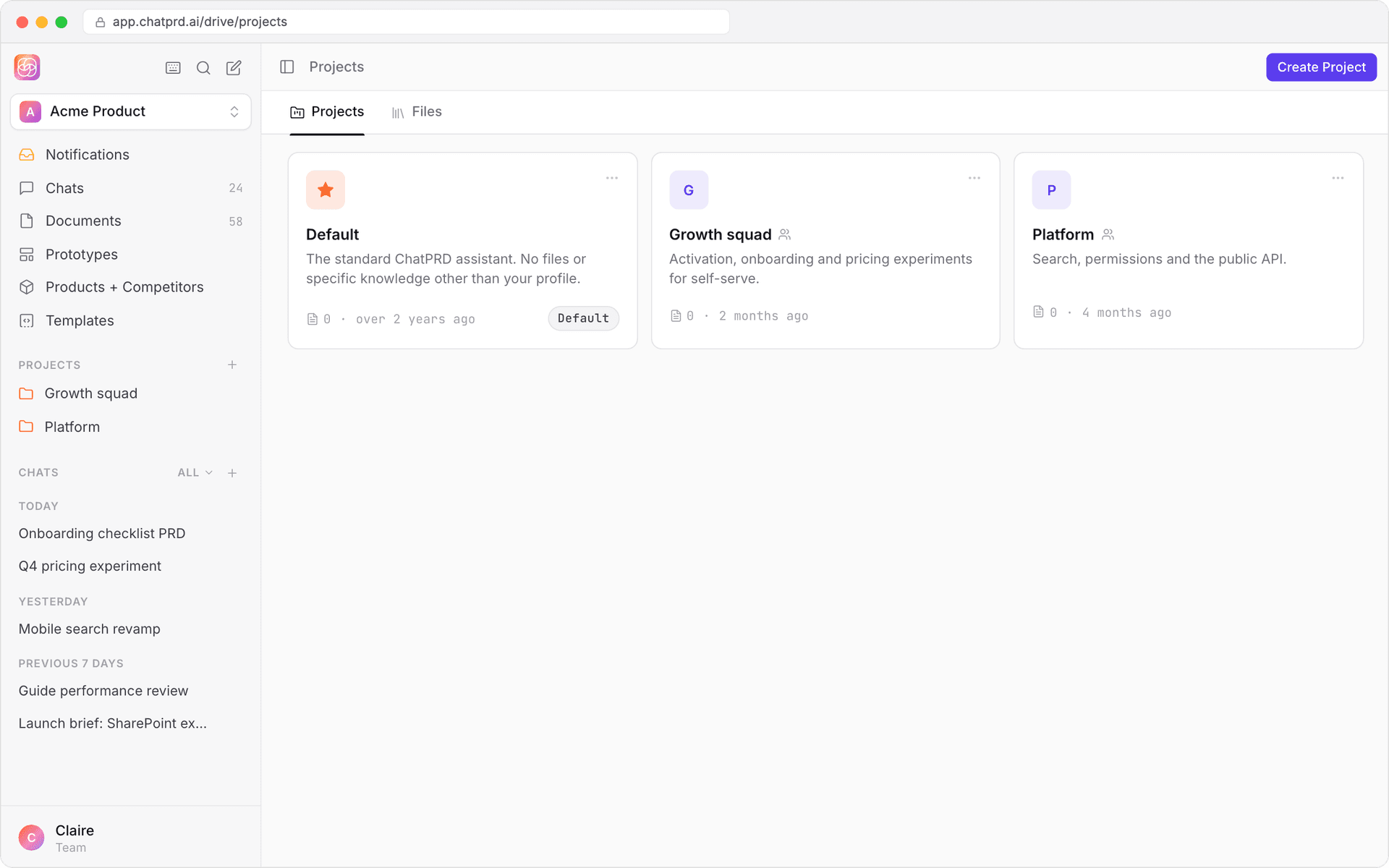
You can also create a project from a chat: open the project picker in the chat and choose Create a new project. The chat moves into the new project.
The project page
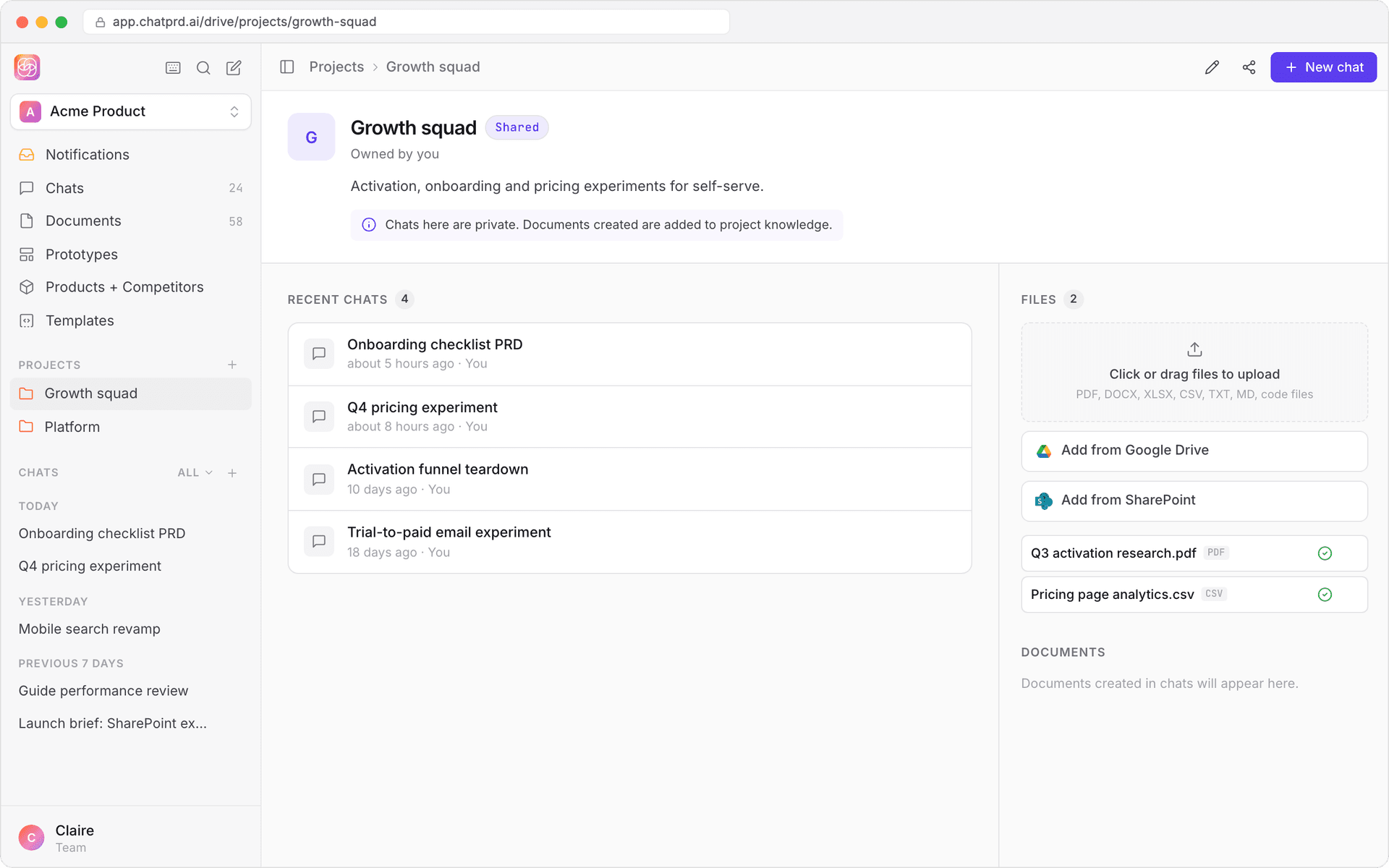
A project's page has:
- A header with Edit (change the name and instructions), Share and New chat.
- The project context: its description and instructions.
- Recent chats in the project.
- Files and Documents: the knowledge ChatPRD uses in this project's chats.
Add files
In the Files panel, click or drag files to upload, or choose Add from Google Drive (or Add from SharePoint in eligible team workspaces). Files save automatically and are available to every chat in the project.
Start or move chats
- New chat in a project: click New chat on the project page. The chat uses the project's instructions and files.
- Move an existing chat: open the chat, open the project picker, and choose the project. The change saves right away. Choose No project to take it out.
Share a project
Click Share on the project page to open Share Project:
- Turn on Share with your organization to give the whole team access, or
- Give access to specific members of your team.
Once a project is shared, chats inside it stay private to whoever started them, and documents created in it are added to the project's knowledge.
Your default project
The Projects page shows your projects as cards. Use Make default on any project to have new chats start in it.
Best practices
- Keep projects focused: one product, feature or initiative each.
- Use clear names that say what the project is for.
- Write thorough instructions covering product context, terms and style, for consistent answers.
- Keep files current: replace outdated specs so ChatPRD doesn't use stale context.
For more on working with your team, see Team Collaboration.