Creating & Using Templates
Build templates from a prompt, an outline or a file, review every section, share them with your team, and let chat pick or switch templates as you write.
Templates give your documents a consistent structure, so every PRD, brief or spec starts in your team's house style. Each template is a set of sections, marked required or optional, with guidance for what goes in each one.
Open your templates
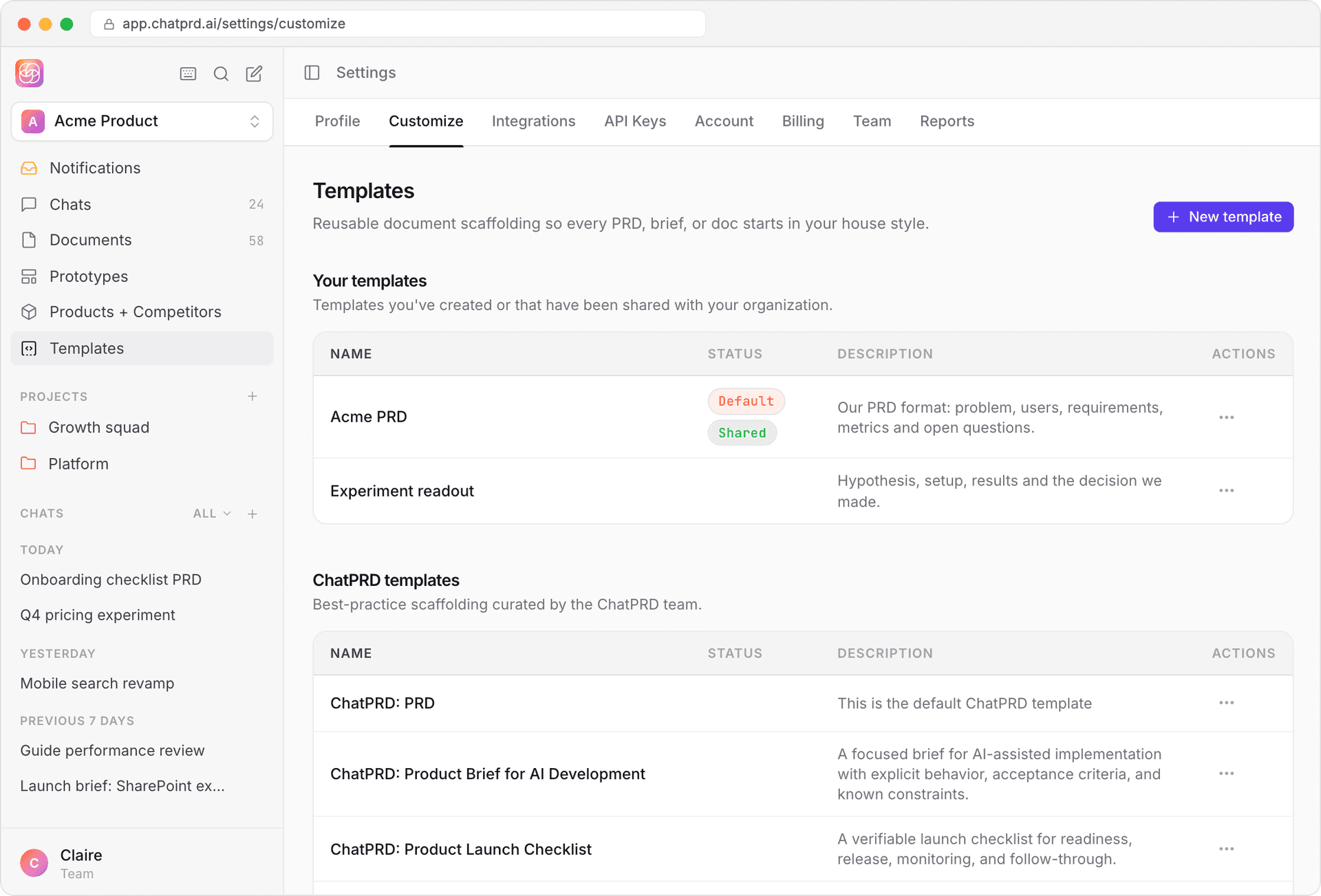
Click Templates in the sidebar (or go to Settings > Customize). You'll see two lists:
- Your templates: the ones you created, plus templates your team shared.
- ChatPRD templates: the built-in templates. See Included Templates. Use Duplicate and customize on any of them to start from a copy.
Create a template
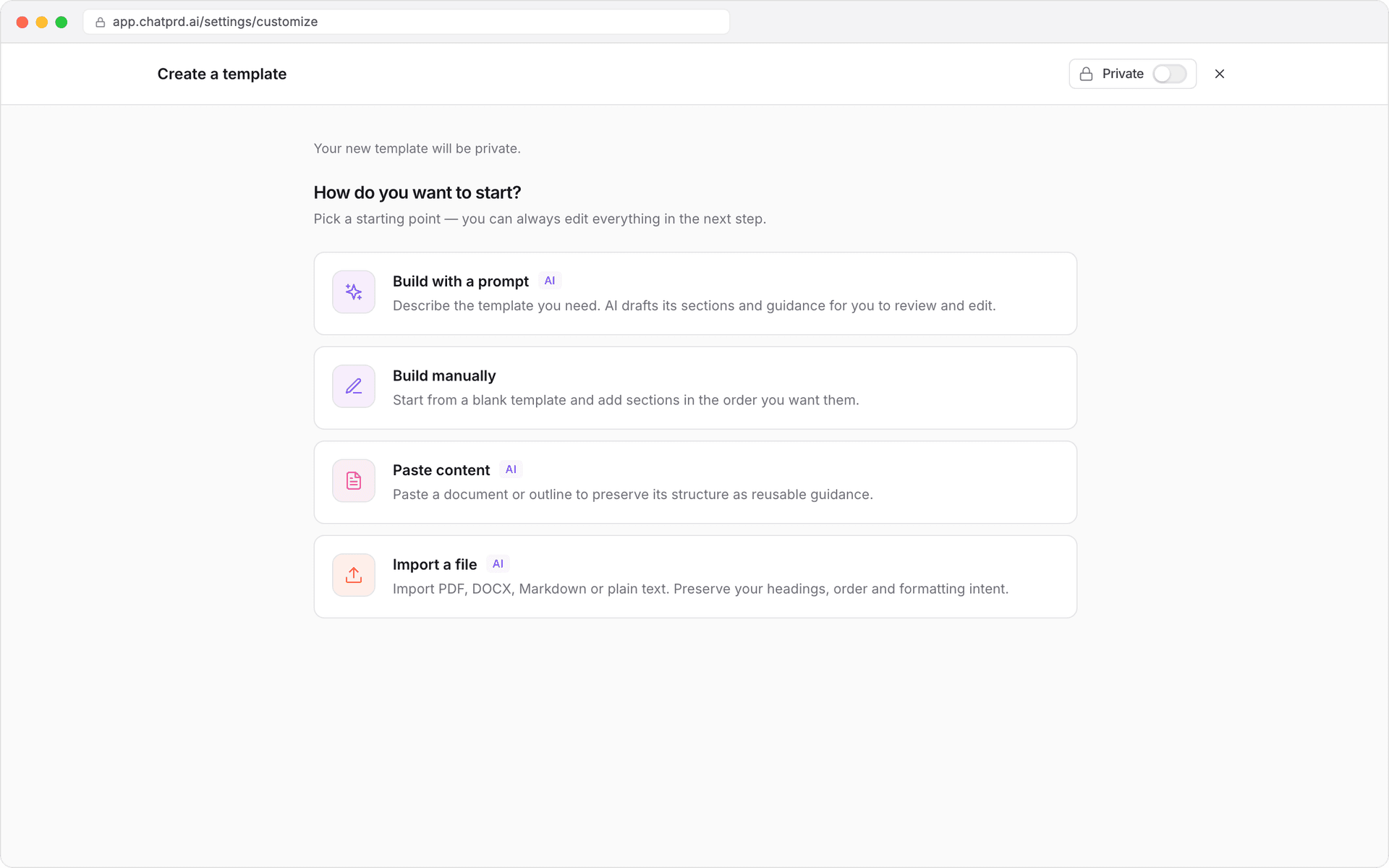
Click New template and choose how to start:
| Method | Best for |
| Build with a prompt | Describing what you need and letting ChatPRD draft every section. |
| Build manually | Starting blank and adding sections in your own order. |
| Paste content | Turning an existing document or outline into a template. |
| Import a file | PDF, DOCX, Markdown or plain text, up to 10 MB. |
Build with a prompt
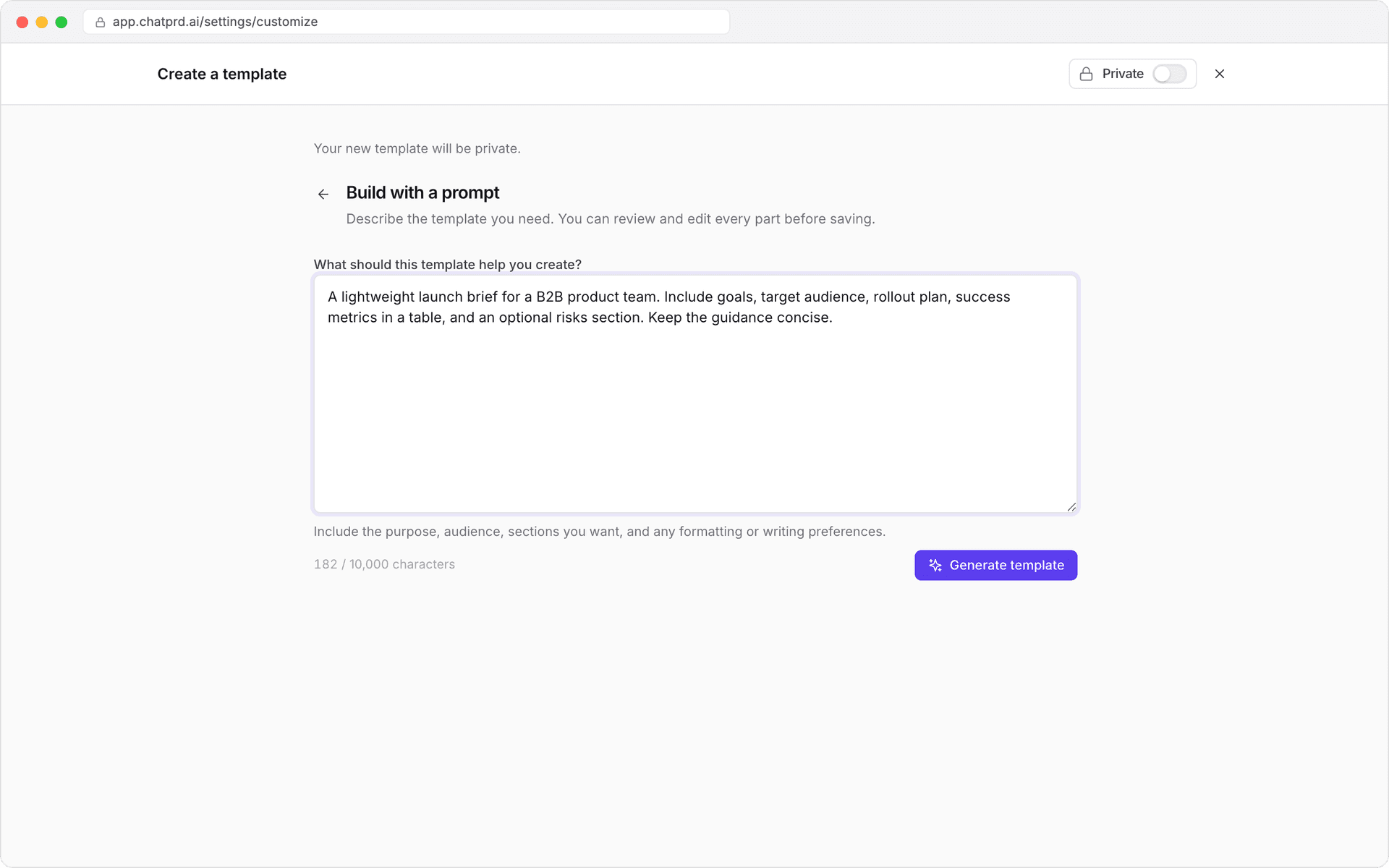
- Describe the template: its purpose, audience, the sections you want, and any formatting or writing preferences. You can use up to 10,000 characters.
- Click Generate template.
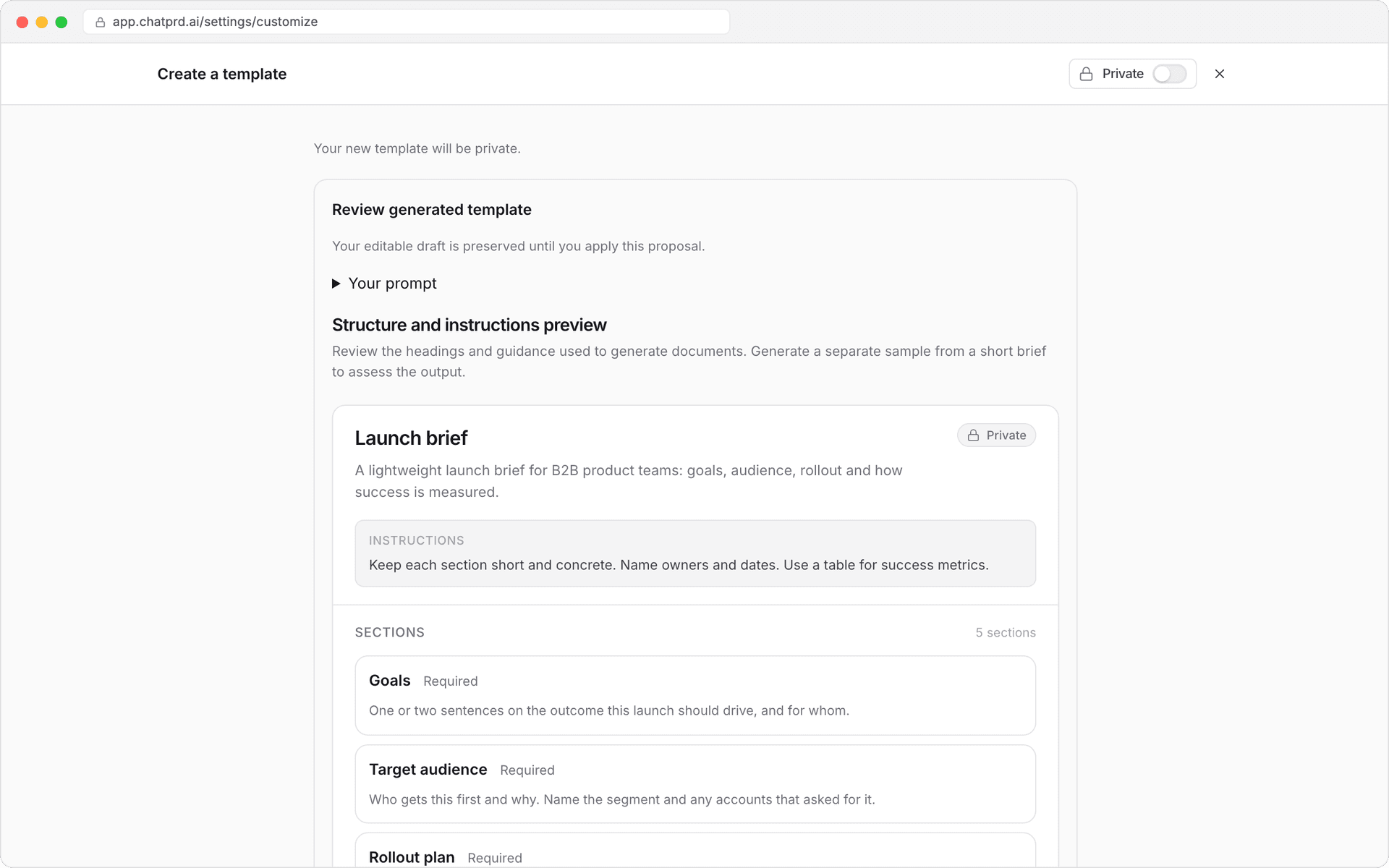
- Review the draft. Each section shows whether it's Required or Optional, with guidance for what goes in it.
- Click Use this draft to keep editing it, or Revise prompt to try again.
- Rename, reorder and edit sections.
- Click Save template.
Paste or import an existing outline
When you paste content or import a file, ChatPRD keeps your headings, their order and your formatting intent exactly as written. You can paste or import up to 100,000 characters at a time.
Improve with AI
While editing any template, click Improve with AI for suggested structural changes. Suggestions are always a proposal: click Use this draft to accept, or Keep my draft to leave your version as it is. ChatPRD never silently rewrites your template.
Templates can have up to 100 sections, nested up to four levels deep.
Edit, share and set a default
From the template's menu in Your templates you can:
- Edit the title, description, instructions and sections.
- Share with organization (team workspaces) so everyone on your team can use it. Sharing is off until you turn it on, using the share switch in the editor or this menu. Choose Unshare to make it private again. Teammates can use shared templates, but only the creator can edit them.
- Make default so new documents use it automatically. Your default shows Current default and a Default badge. Each workspace has its own default.
Use a template in chat
Click Writing in the composer and pick a template:
- Auto (ask me each time): ChatPRD picks the best match. When it isn't sure, it asks you to choose before it writes.
- ChatPRD: PRD or another ChatPRD template, one of your Custom templates, or None.
When ChatPRD starts a document, a card shows the template it chose and why. An Auto tag means ChatPRD picked it. Click Change to pick another before it writes. Once the document exists, the card records which template it used.
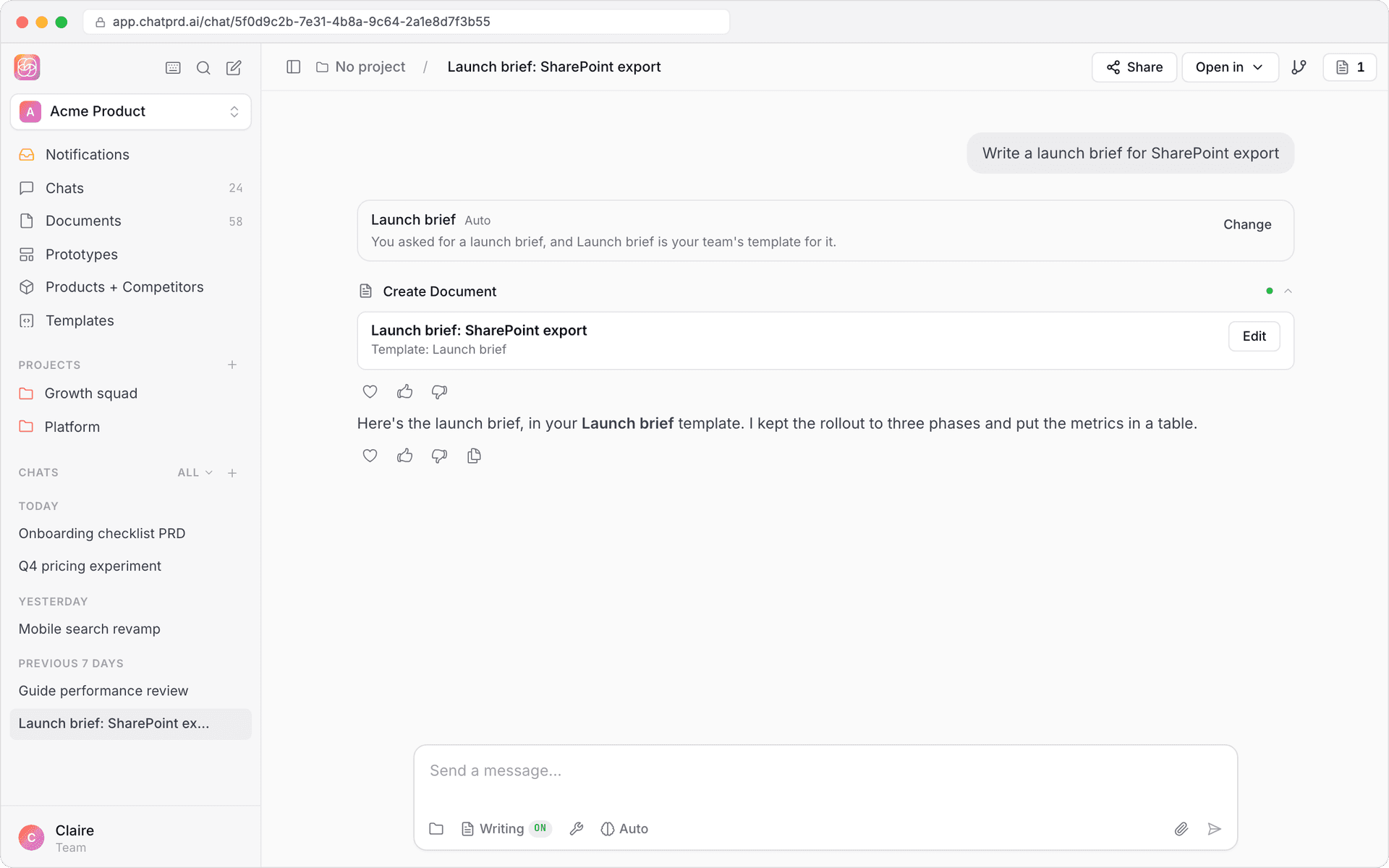
Switch templates mid-conversation
Name the template in chat, for example "Use our Launch brief template instead", and ChatPRD switches for the next document. You can also change it from Writing at any time. If a template can't be used, ChatPRD tells you and lets you pick another.
Template best practices
- Start with the basics: try ChatPRD's templates to see how a good structure works.
- Make one template per document type, such as PRDs, specs and briefs.
- Add guidance to each section so ChatPRD (and your teammates) know what belongs there.
- Share what works with your team for consistent documents.
- Iterate: refine templates as your process changes.
Troubleshooting
- Template not saving: make sure every section has a title.
- Template not appearing: refresh the page, and check it's shared if a teammate made it.
- Can't edit a template: only the creator can edit a shared template. Use Duplicate and customize to make your own copy.
- Default not applying: make sure you clicked Make default, not just selected the template once.